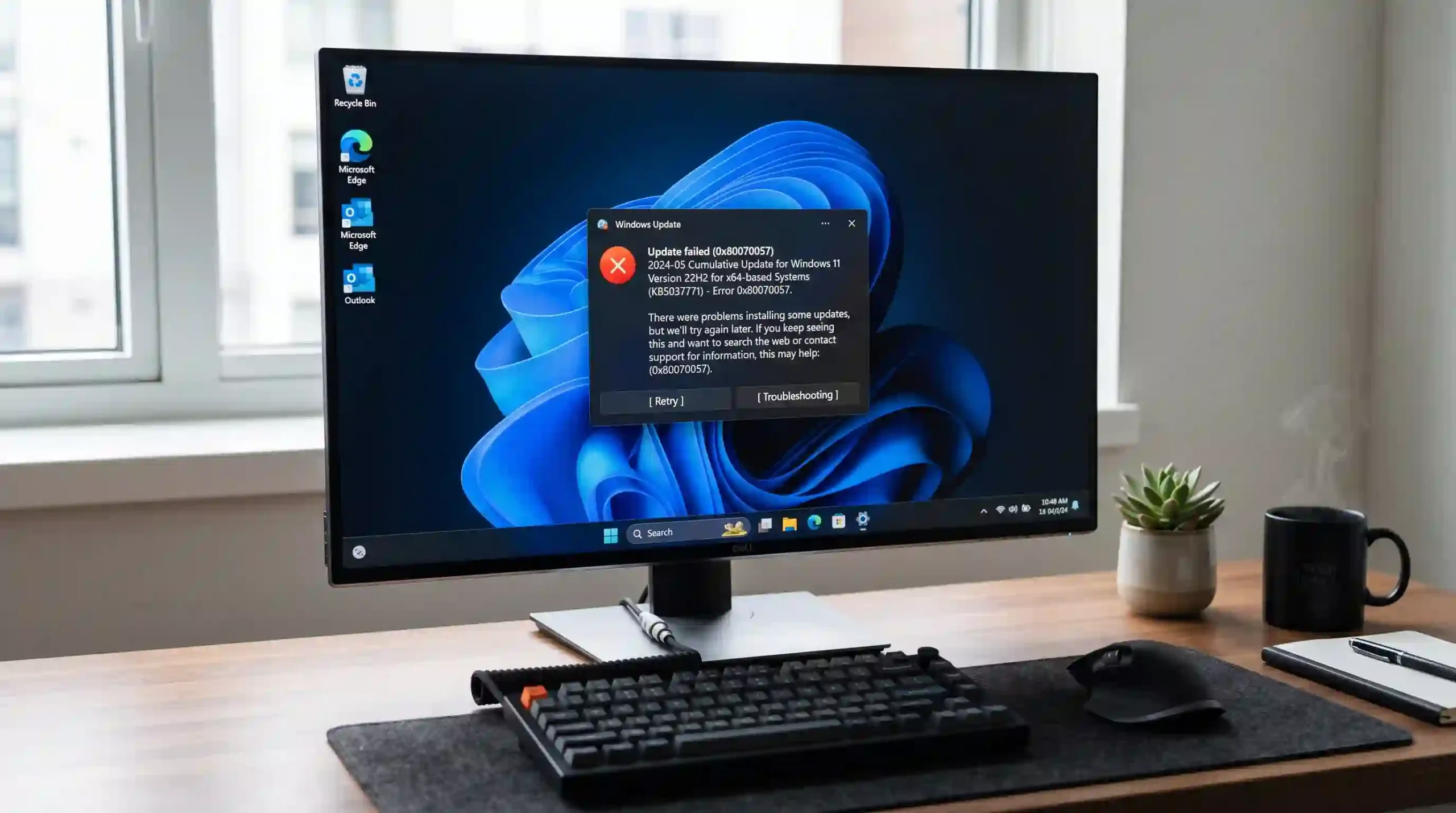
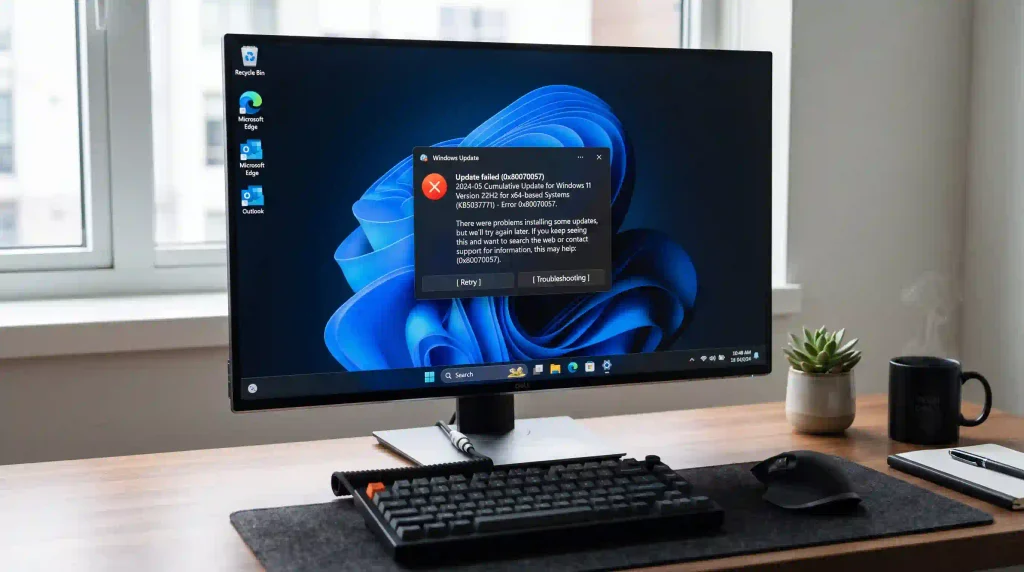
Windows updates are essential for keeping your computer secure, stable, and compatible with the latest software. However, many users encounter the frustrating Windows Update Error 0x80070057 when trying to download or install updates on Windows 11 and Windows 10. Windows updates provide security improvements, bug fixes, and feature enhancements. Microsoft regularly publishes update information through its official Windows support documentation to help users troubleshoot common system problems.
If you are searching for how to fix Windows Update Error 0x80070057, this complete troubleshooting guide will help you identify the causes and apply effective solutions. From repairing corrupted system files to resetting Windows Update components, these methods can help restore normal update functionality.
What Is Windows Update Error 0x80070057?
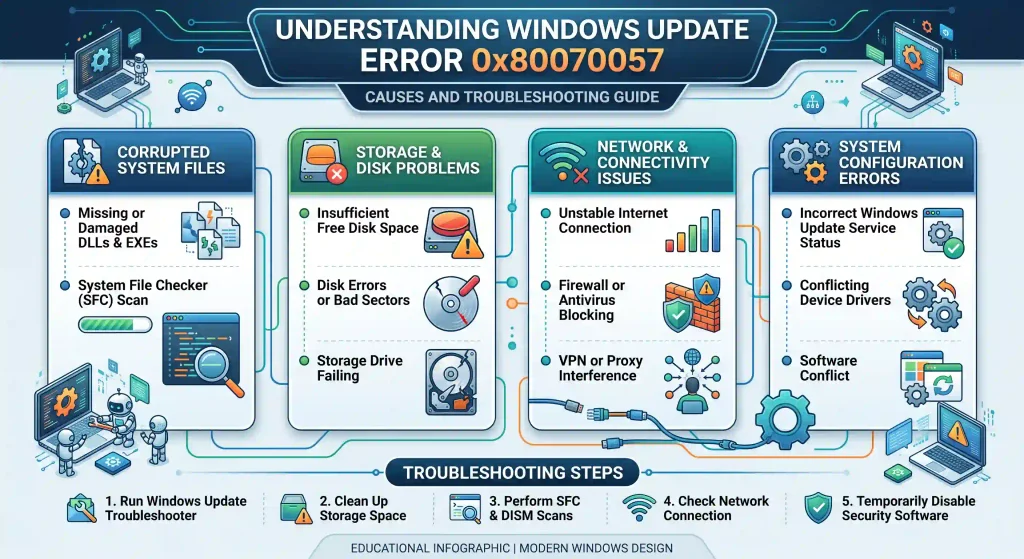
The Windows Update Error 0x80070057 is a common Windows system error that usually appears when Windows cannot complete an update installation or process required files correctly.
The error code may appear with messages such as:
- “There were some problems installing updates, but we’ll try again later.”
- “The parameter is incorrect.”
- “Windows Update encountered an unknown error.”
- “Error 0x80070057 while installing Windows updates.”
The error can occur during:
- Windows Update installation
- Windows upgrade process
- System backup operations
- Windows installation setup
- Microsoft Store downloads
Understanding the cause is the first step in learning how to fix Windows Update Error 0x80070057 effectively.
Common Causes of Windows Update Error 0x80070057
Before applying fixes, it is important to understand why this Windows update problem happens.
1. Corrupted Windows Update Files
Windows stores downloaded update files in a temporary update folder. If these files become damaged because of interrupted downloads or sudden shutdowns, Windows Update may fail.
2. Incorrect Windows Update Settings
Incorrect registry values, configuration errors, or damaged update settings can prevent Windows from communicating properly with Microsoft update servers.
3. Insufficient Storage Space
Windows requires enough free storage to download and install updates. Limited disk space can cause installation failures.
4. Damaged System Files
Important Windows components may become corrupted due to malware, failed updates, or unexpected system crashes.
5. Network Connection Problems
Unstable internet connections can interrupt update downloads and create incomplete installation packages.
How to Fix Windows Update Error 0x80070057
Follow these solutions step by step until the Windows update problem is resolved.
1. Restart Your Computer and Check Internet Connection
The simplest solution is often restarting Windows.
A restart clears temporary files, reloads update services, and removes minor system conflicts.
Steps:
- Click Start.
- Select Power.
- Choose Restart.
- Connect to a stable internet connection.
- Try Windows Update again.
If the error disappears, the problem was likely caused by a temporary update service failure.
2. Run Windows Update Troubleshooter
Windows includes a built-in troubleshooting tool designed to automatically detect common update problems. Microsoft provides a dedicated Windows Update troubleshooting guide that explains additional steps for diagnosing update failures and installation problems. Update failures are not limited to Windows computers. Smartphones can also experience installation problems caused by software conflicts, storage limitations, or connection issues. Learn more about how to fix iPhone update not working problems with these practical solutions.
Steps:
- Open Settings.
- Select:
System → Troubleshoot → Other troubleshooters
- Find Windows Update.
- Click Run.
- Follow the recommended fixes.
The troubleshooter checks update services, configuration settings, and related system components.
3. Check Available Disk Space
A lack of storage space can trigger Windows Update Error 0x80070057.
Recommended:
Keep at least:
- 20 GB free space for Windows feature updates
- 5–10 GB for smaller security updates
Steps:
- Press Windows + E.
- Open This PC.
- Check your system drive storage.
- Remove unnecessary files if needed.
You can also use:
Settings → System → Storage → Temporary Files
to safely remove unnecessary data.
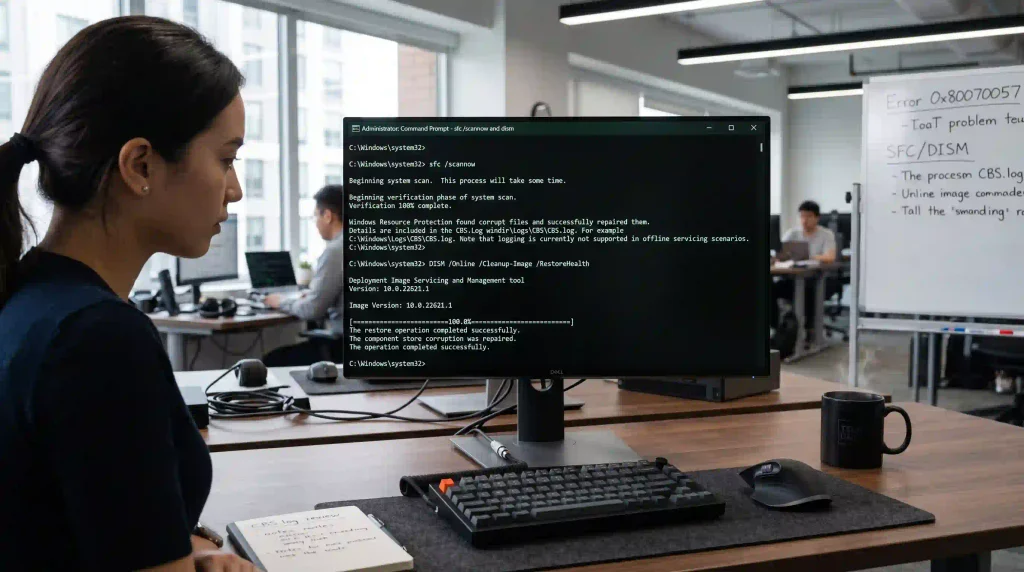
4. Run System File Checker (SFC)
Corrupted Windows system files are one of the main reasons behind update errors.
System File Checker can automatically scan and repair damaged files. You can learn more about repairing corrupted Windows components by following Microsoft’s official System File Checker tool guide
Steps:
- Press Windows + S.
- Search:
Command Prompt- Select Run as administrator.
Run:
sfc /scannowWait until the scan completes.
After finishing, restart your PC and check Windows Update again.
5. Repair Windows Image Using DISM
If SFC cannot repair all corrupted files, use DISM. Similar application crashes can also affect gaming software installed on Windows. If you experience repeated game failures, corrupted files, or unexpected shutdowns, check this guide on how to fix Minecraft keeps crashing on Windows for additional troubleshooting solutions.
DISM repairs the Windows component store that Windows uses for system recovery.
Open Command Prompt as Administrator:
Run:
DISM /Online /Cleanup-Image /RestoreHealthAfter completion:
sfc /scannowRestart your computer.
This method is one of the most effective ways to fix Windows Update Error 0x80070057 caused by system corruption. The DISM command is designed to repair Windows images and resolve component corruption. Microsoft provides detailed instructions in its DISM Windows image repair documentation. Some Minecraft crashes happen because Windows cannot properly allocate memory or access required system resources. In these cases, users can check this guide about how to fix Error 0xc0000005 in Windows 11 for advanced system troubleshooting methods.
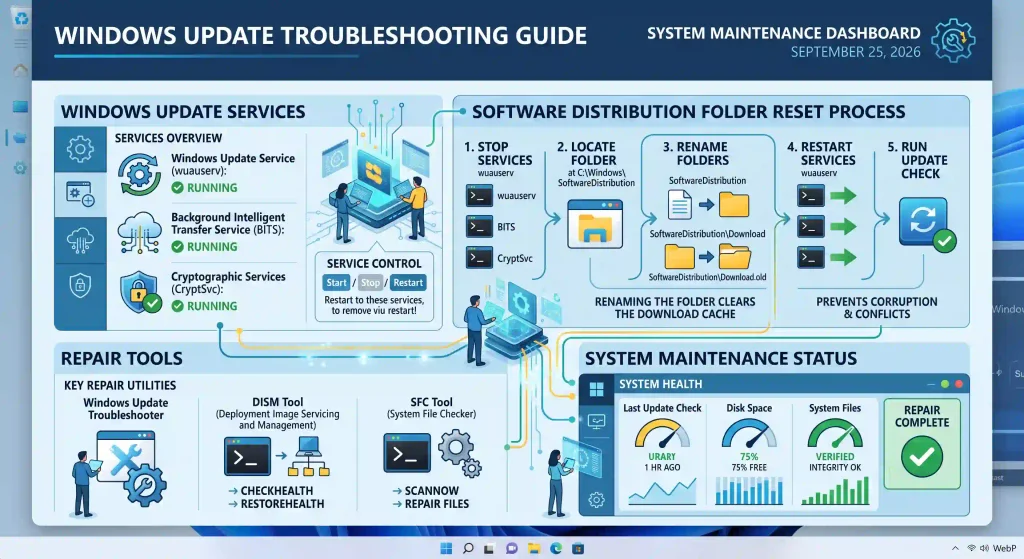
6. Reset Windows Update Components
Damaged update services and cache files can prevent Windows from downloading new updates.
Follow these steps:
Open Command Prompt as Administrator.
Stop Windows Update services:
net stop wuauserv
net stop cryptSvc
net stop bits
net stop msiserver
Rename update folders:
ren C:\Windows\SoftwareDistribution SoftwareDistribution.old
ren C:\Windows\System32\catroot2 catroot2.old
Restart services:
net start wuauserv
net start cryptSvc
net start bits
net start msiserver
Restart Windows and check for updates. Encountering Windows Update Error 0x80070057 often points to damaged system storage files during installation.
7. Correct Windows Date and Time Settings
Incorrect system time can interfere with Windows Update authentication.
Steps:
- Open Settings.
- Select:
Time & language → Date & time
- Enable:
- Set time automatically
- Set time zone automatically
Restart Windows Update.
8. Disable Third-Party Antivirus Temporarily
Security software can sometimes block Windows update processes.
If you use third-party antivirus:
- Temporarily disable protection.
- Run Windows Update.
- Enable antivirus again afterward.
Do not keep security protection disabled permanently.
9. Perform a Clean Boot
A clean boot starts Windows with minimal startup programs and services.
This helps identify software conflicts.
Steps:
- Press:
Windows + R- Type:
msconfig- Open the Services tab.
- Select:
Hide all Microsoft services
- Click:
Disable all
- Restart your computer.
Try installing updates again.
10. Check Windows Registry Settings
Incorrect registry values can contribute to Windows update problems.
Before modifying the registry:
- Create a restore point.
- Export registry settings.
Common location:
HKEY_LOCAL_MACHINE\SOFTWARE\Microsoft\WindowsUpdateIncorrect registry modifications can damage Windows, so only change settings when you understand their purpose.
11. Download and Install Updates Manually
If Windows Update continues failing, install updates manually.
Steps:
- Find your Windows version.
- Visit Microsoft Update Catalog.
- Search the KB update number.
- Download the correct package.
- Install manually.
This method bypasses Windows Update service problems.
12. Reset or Repair Windows Installation
If all solutions fail, Windows installation itself may be damaged.
Options include:
- System Restore
- Repair installation
- Reset Windows while keeping files
Before resetting Windows, always back up important files.
Frequently Asked Questions About Windows Update Error 0x80070057
What causes Windows Update Error 0x80070057?
The error is commonly caused by corrupted update files, damaged system components, incorrect settings, insufficient storage, or interrupted downloads.
Is Windows Update Error 0x80070057 dangerous?
No. It usually does not indicate hardware damage. It is mainly a software configuration or system file problem.
Can SFC fix Error 0x80070057?
Yes. Running SFC can repair corrupted Windows files that may prevent updates from installing correctly.
Does reinstalling Windows fix Error 0x80070057?
A Windows repair installation can fix severe system corruption, but simpler solutions like resetting update components should be tried first. When Error 0xc0000005 appears only on specific applications, corrupted installation files may be the cause. For gaming platforms and software startup problems, follow this guide on how to fix Steam not opening issues on Windows.
Final Thoughts
Learning how to fix Windows Update Error 0x80070057 can save time and prevent unnecessary Windows reinstallation. In most cases, the problem is caused by corrupted update files, damaged system components, or incorrect settings.
Start with basic solutions such as restarting your PC, running Windows Update Troubleshooter, checking storage space, and repairing system files with SFC and DISM. If the issue continues, resetting Windows Update components or performing a repair installation can restore normal update functionality.
