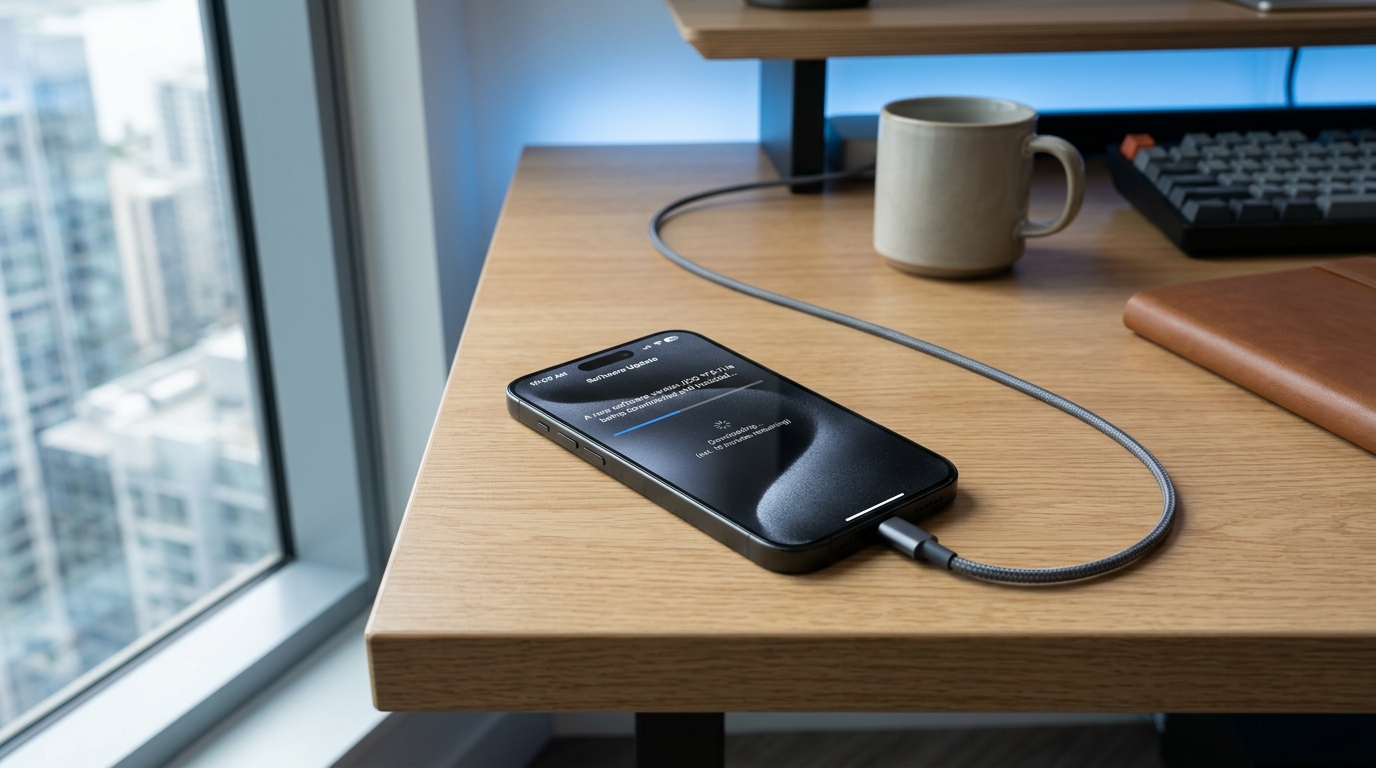
Trying to update your iPhone but the update refuses to install? An iPhone update may fail because of insufficient storage, a weak internet connection, low battery, Apple server problems, outdated software, or an interrupted download.
If your iPhone is stuck on “Unable to Check for Update,” “Unable to Install Update,” “Update Requested,” or the update simply does not appear, there are several troubleshooting steps you can try before contacting Apple Support.
This guide explains how to fix iPhone update not working using simple solutions, starting with the safest and easiest methods.
Quick Overview: Why Is My iPhone Update Not Working?
Before trying advanced troubleshooting, check these common causes:
- Your iPhone does not have enough available storage.
- The Wi-Fi connection is unstable.
- Your iPhone battery is too low.
- The iPhone cannot communicate properly with Apple’s update servers.
- The downloaded update file is corrupted.
- Your current iOS version has a temporary software problem.
- The iPhone is managed by a company or school.
- Apple’s servers are experiencing unusually high traffic.
- The iPhone model may not support the latest iOS version.
In many cases, restarting the iPhone and checking storage or Wi-Fi can resolve the problem quickly. iPhone Update Not Working can stop your device from receiving new features.
1. Check Your Internet Connection
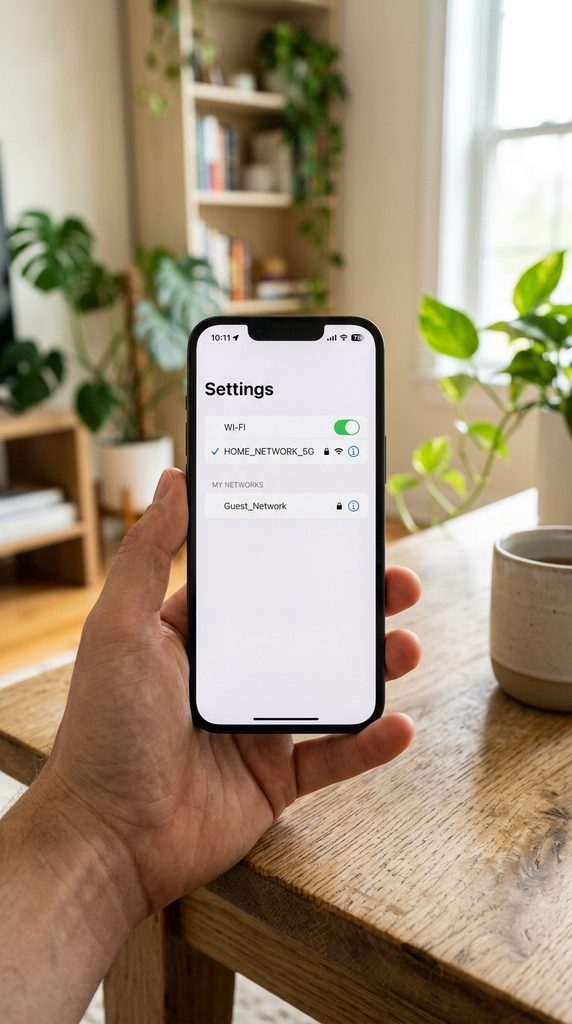
A reliable internet connection is one of the most important requirements for downloading an iOS update.
If your iPhone is connected to weak or unstable Wi-Fi, the update may remain stuck at “Update Requested” or fail during the download.
Try these steps:
- Open Settings.
- Tap Wi-Fi.
- Check that you are connected to a reliable network.
- Move closer to your Wi-Fi router if the signal is weak.
- Try disconnecting and reconnecting to Wi-Fi.
- If possible, test another Wi-Fi network.
Avoid relying on an unstable connection while downloading a large iOS update.
Quick tip
If websites and apps are also loading slowly, the problem may be your internet connection rather than the iPhone update itself. Fixing iPhone Update Not Working problems helps improve system performance.
2. Restart Your iPhone
A simple restart can clear temporary system glitches that interfere with software updates.
If your iPhone is behaving strangely or the Software Update screen is not responding, restart the device before trying another solution.
Restart an iPhone with Face ID
- Press and hold the side button and either volume button.
- Drag the power-off slider.
- Wait approximately 30 seconds.
- Press and hold the side button until the Apple logo appears.
After the iPhone restarts, connect it to Wi-Fi and try checking for the update again. iPhone Update Not Working may occur because of network connection issues.
Restart an iPhone with a Home button
Press and hold the side or top button until the power-off slider appears. Turn off the iPhone, wait a moment, and then turn it back on. Many users face iPhone Update Not Working during software installation.
3. Make Sure Your iPhone Has Enough Storage
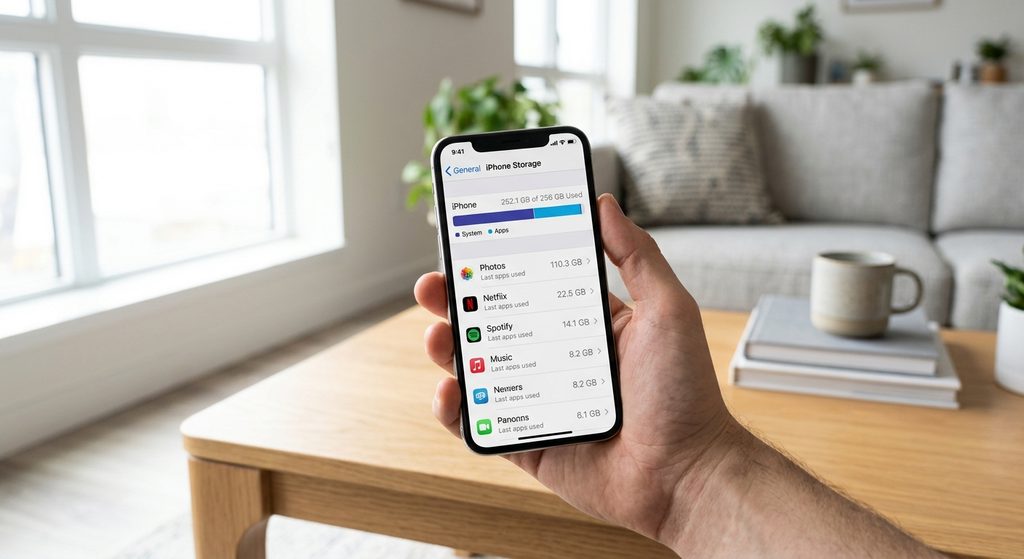
Insufficient storage is one of the most common reasons an iOS update cannot be installed.
Even if the update itself appears to require a certain amount of space, your iPhone may need additional temporary storage while preparing and installing the software.
Check available storage
- Open Settings.
- Tap General.
- Select iPhone Storage.
- Review the available space.
You can remove unnecessary apps, videos, photos, downloads, and other large files if storage is almost full. iPhone Update Not Working can happen when storage space is insufficient.
What should you delete first?
Large video files are often a good place to start. You can also review unused applications and downloaded media. Restarting the device may solve some iPhone Update Not Working errors.
If you use iCloud Photos, make sure you understand how your photos are being stored before deleting anything.
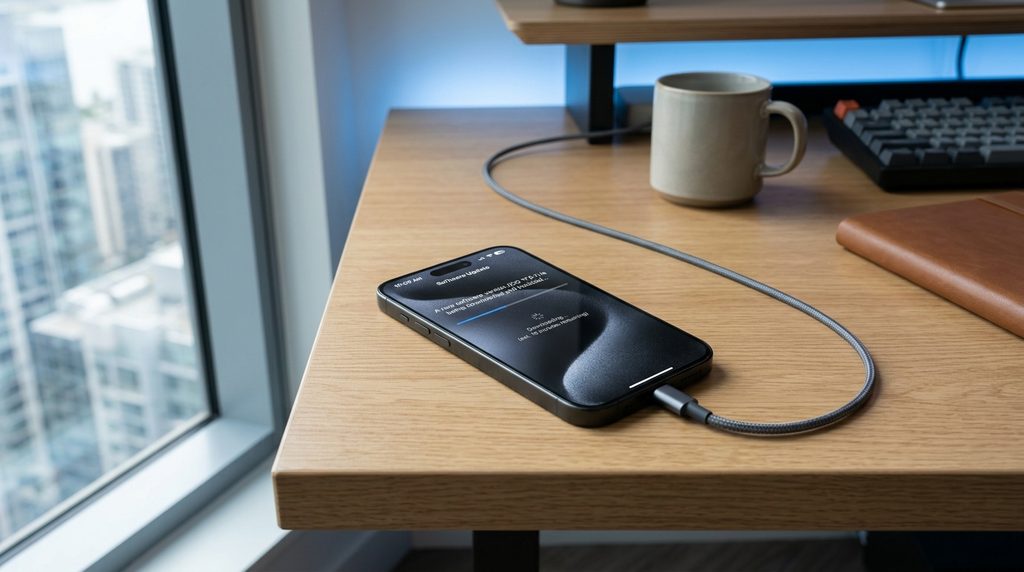
4. Connect Your iPhone to a Charger
Some iOS updates may not proceed when the device has insufficient battery power.
Connect your iPhone to a reliable charger and leave it connected while checking for and installing the update.
For best results:
- Use a reliable charging cable.
- Connect directly to a power source.
- Keep the iPhone connected during the installation process.
- Avoid repeatedly disconnecting the device during an update.
If your battery is very low, charge the iPhone before attempting the update again. iPhone Update Not Working issues can delay important security updates.
5. Check Apple’s System Status
Sometimes the problem is not your iPhone.
When a major iOS update becomes available, many users may attempt to download it simultaneously. High demand or a temporary Apple service problem can interfere with the update process.
If everything looks normal on your iPhone but the update still fails, check Apple’s system status page for service interruptions.
If Apple’s services are experiencing problems, waiting until the service is restored may be necessary. Checking Apple settings may help resolve iPhone Update Not Working problems.
6. Delete the Downloaded iOS Update and Try Again
If an update downloaded incorrectly or became corrupted, deleting the downloaded update can sometimes solve the problem. iPhone Update Not Working can be caused by temporary software bugs.
How to delete an iOS update
- Open Settings.
- Tap General.
- Select iPhone Storage.
- Look for the downloaded iOS update in the list.
- Tap the update.
- Select Delete Update.
- Confirm the deletion.
Afterward, restart your iPhone, reconnect to Wi-Fi, and return to:
Settings → General → Software Update
Then download the update again.
Important
Only delete the downloaded update file. Do not delete personal photos, contacts, or other important files unless you have confirmed they are safely backed up. Understanding iPhone Update Not Working helps users troubleshoot update failures. Update failures are not limited to mobile devices, as computers can also experience problems when installing system updates. If you encounter similar issues on Windows, our guide on Windows Update Error 0x80070057 explains the causes and solutions for resolving update-related failures.
7. Turn Off VPN Temporarily
A VPN or network-filtering application can sometimes interfere with connections required by Apple’s software update process.
If you are using a VPN, temporarily disconnect it and try updating again.
You can also check:
Settings → General → VPN & Device Management
The exact menu options may vary depending on your iOS version and configuration.
If your iPhone belongs to a company or school, do not remove a management profile without permission from the administrator. iPhone Update Not Working may prevent users from installing the latest iOS version.
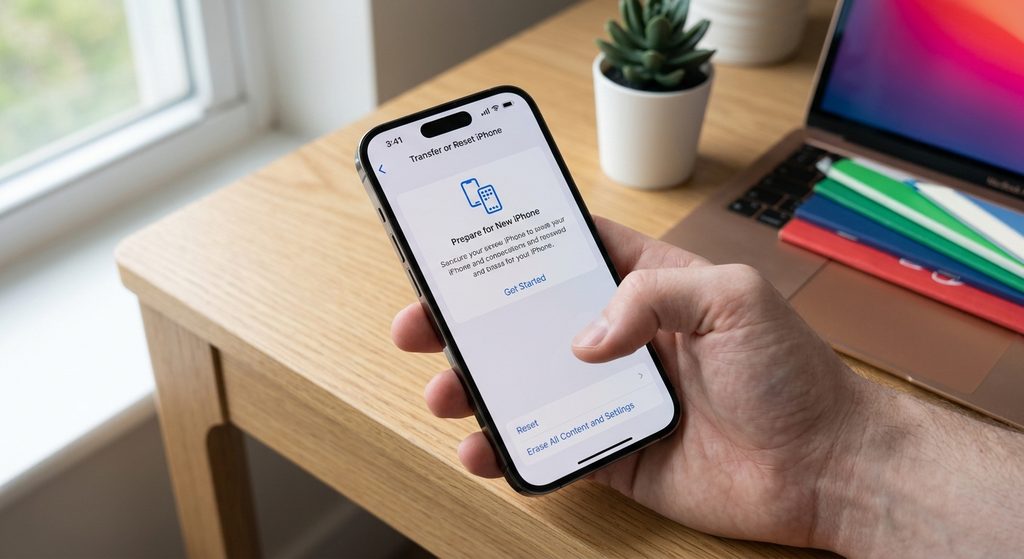
8. Reset Network Settings
If your Wi-Fi connection appears normal but the iPhone still cannot download an update, resetting network settings may help.
Go to:
Settings → General → Transfer or Reset iPhone → Reset → Reset Network Settings
Keep in mind that this removes saved Wi-Fi networks and passwords, along with other network-related settings. A weak internet connection can cause iPhone Update Not Working issues.
Before resetting
Make sure you know your important Wi-Fi passwords because you will need to reconnect to your networks afterward.
This method is particularly useful if your iPhone has recently experienced Wi-Fi, cellular, VPN, or network connection problems. iPhone Update Not Working sometimes appears after failed download attempts. Software conflicts and corrupted system components can cause update problems across different platforms. For users dealing with application crashes or system access errors on computers, our guide about Error 0xc0000005 in Windows 11 provides additional troubleshooting steps.
9. Update Your iPhone Using a Computer
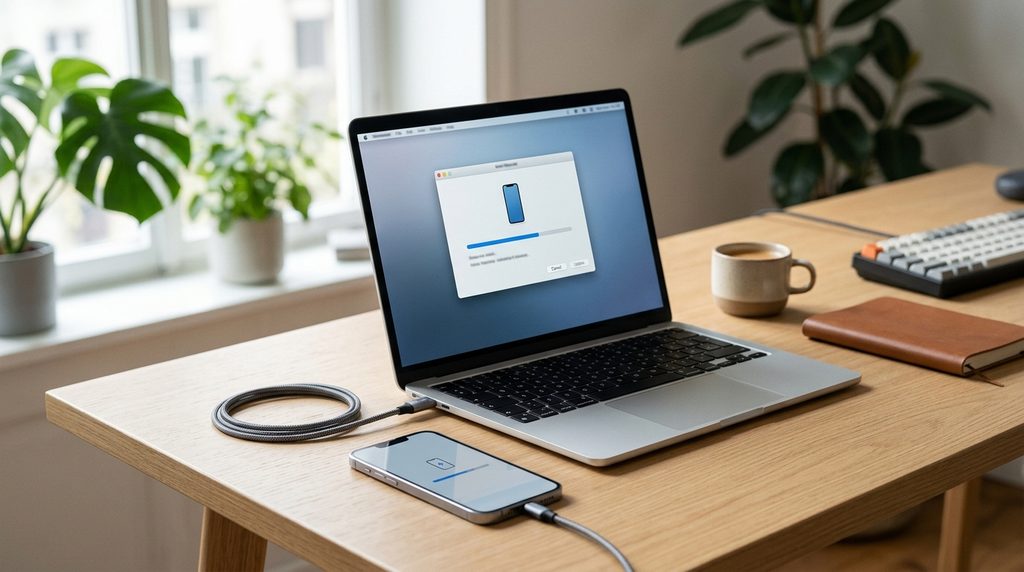
If updating directly from the iPhone continues to fail, you can try updating it through a computer.
For newer Macs, you can use Finder. On Windows PCs, Apple Devices or compatible Apple software may provide the necessary device management features depending on your setup.
General process
- Connect your iPhone to the computer using a USB cable.
- Unlock your iPhone.
- Trust the computer if prompted.
- Open the appropriate Apple device management application.
- Select your iPhone.
- Look for the software update option.
- Follow the on-screen instructions.
Using a computer can be helpful when the iPhone itself cannot successfully complete the over-the-air update process. Clearing storage space may help fix iPhone Update Not Working problems.
10. Force Restart the iPhone
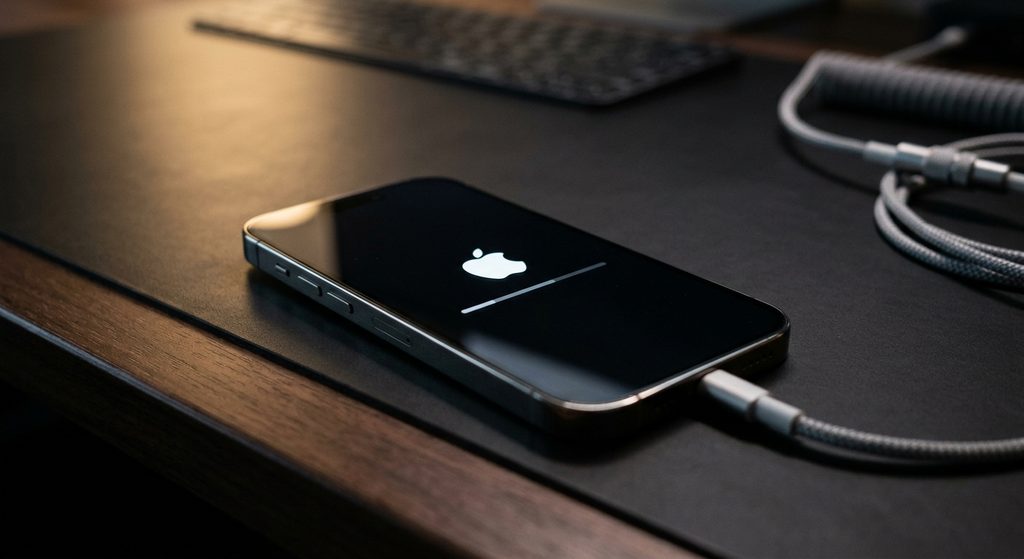
If the iPhone becomes completely unresponsive during troubleshooting, a force restart may help.
The button combination depends on the iPhone model.
iPhone 8 and newer
- Quickly press and release the Volume Up button.
- Quickly press and release the Volume Down button.
- Press and hold the Side button.
- Release the button when the Apple logo appears.
A force restart does not normally erase your personal data.
However, avoid repeatedly interrupting an iOS installation that is actively progressing. If the device is displaying an installation screen, give it adequate time before taking further action. iPhone Update Not Working can affect device security and performance. iPhone Update Not Working can prevent your device from accessing new iOS features.
11. Check Whether Your iPhone Supports the iOS Version
Not every iPhone can install every new version of iOS.
If the update does not appear under Settings → General → Software Update, check whether your specific iPhone model supports the iOS version you are trying to install.
Find your iPhone model
Go to:
Settings → General → About
Look for the model information.
Then compare your model with Apple’s official compatibility information for the iOS version you want to install.
This is especially important when using an older iPhone. Users should check system status when iPhone Update Not Working happens.
12. Make Sure You Have a Backup
Before performing major troubleshooting or attempting a significant iOS upgrade, creating a current backup is a smart precaution.
You can use iCloud or a computer backup depending on your preferred setup.
A backup can help protect important information such as:
- Photos
- Contacts
- Messages
- App data
- Device settings
- Other personal information
A backup is particularly important before advanced troubleshooting steps such as restoring the iPhone. iPhone Update Not Working may result from outdated device settings.
13. What to Do If Your iPhone Is Stuck on “Update Requested”
The “Update Requested” message usually means the iPhone has requested the software update but has not yet progressed to downloading or installing it.
Try these steps in order:
- Check your Wi-Fi connection.
- Restart the iPhone.
- Connect the iPhone to power.
- Check available storage.
- Check Apple’s system status.
- Delete the downloaded update if it appears in iPhone Storage.
- Reconnect to Wi-Fi.
- Try the update again.
If Apple’s servers are busy, waiting and trying again later may be necessary. Resetting network options can solve some iPhone Update Not Working errors.
14. What to Do If Your iPhone Says “Unable to Install Update”
If you see “Unable to Install Update,” first make sure that:
- The iPhone is connected to Wi-Fi.
- The battery has sufficient charge.
- There is enough free storage.
- The device has been restarted.
- The update file is not corrupted.
If the downloaded update appears under iPhone Storage, deleting it and downloading it again can be worth trying.
If the problem continues, try updating through a computer. iPhone Update Not Working requires identifying the source of the update failure.
15. What to Do If the iOS Update Is Stuck
An update can sometimes appear to stop progressing for a while.
Before assuming that the installation has failed, give the device enough time to complete the process. Larger updates can take longer depending on the iPhone model, storage condition, update size, and other factors.
Keep the iPhone connected to power and avoid unnecessarily restarting it during an active installation.
If the iPhone remains unresponsive for an extended period, you may need to use additional recovery or computer-based troubleshooting. Regular maintenance can reduce the chance of iPhone Update Not Working issues.
When Should You Contact Apple Support?
If you have tried the basic troubleshooting methods and your iPhone still cannot update, contacting Apple Support may be appropriate.
Professional assistance is especially useful if:
- The iPhone repeatedly fails every update attempt.
- The device cannot boot normally.
- The iPhone displays a persistent error message.
- The device becomes stuck during startup.
- A computer cannot recognize the iPhone.
- You suspect a hardware problem.
- The iPhone has suffered physical or liquid damage.
Before contacting support, write down the exact error message and the troubleshooting steps you have already tried. This can make the support process easier.
Frequently Asked Questions
Why is my iPhone update not working?
An iPhone update may fail because of insufficient storage, poor Wi-Fi, low battery, a corrupted update file, temporary software problems, Apple service issues, or device compatibility limitations.
Why won’t my iPhone let me install the update?
Check your available storage, internet connection, battery level, and iPhone compatibility. Restarting the device and downloading the update again may also help.
How do I fix an iPhone stuck on Update Requested?
Start by checking Wi-Fi, restarting the iPhone, connecting it to power, and checking Apple’s system status. If the update file is already downloaded, deleting it from iPhone Storage and downloading it again may resolve the problem.
Can low storage prevent an iPhone update?
Yes. An iOS installation may require additional temporary storage. If your iPhone is nearly full, freeing up space can help the update proceed.
Can I update my iPhone without Wi-Fi?
The available update methods can vary by iOS version and device configuration. A computer can provide an alternative update method when an over-the-air update is not working.
Will resetting network settings delete my photos?
No. Resetting network settings does not normally delete your photos or personal files. However, it removes saved network-related information such as Wi-Fi passwords.
Should I force restart my iPhone during an update?
Avoid force restarting an iPhone while it is actively installing an update unless the device is genuinely frozen and standard troubleshooting is no longer possible. Interrupting an installation unnecessarily can create additional problems.
Final Thoughts
When an iPhone update is not working, there is usually no need to panic. Start with the simplest solutions: check your Wi-Fi connection, restart the iPhone, connect it to power, and make sure there is enough free storage.
If those steps do not work, deleting a problematic update file, resetting network settings, or updating through a computer can provide additional options.
The most important thing is to avoid unnecessary data loss. Make a backup whenever possible before performing advanced troubleshooting or restoring your iPhone.
With the right troubleshooting steps, many common iPhone update problems can be resolved without visiting a repair shop.
