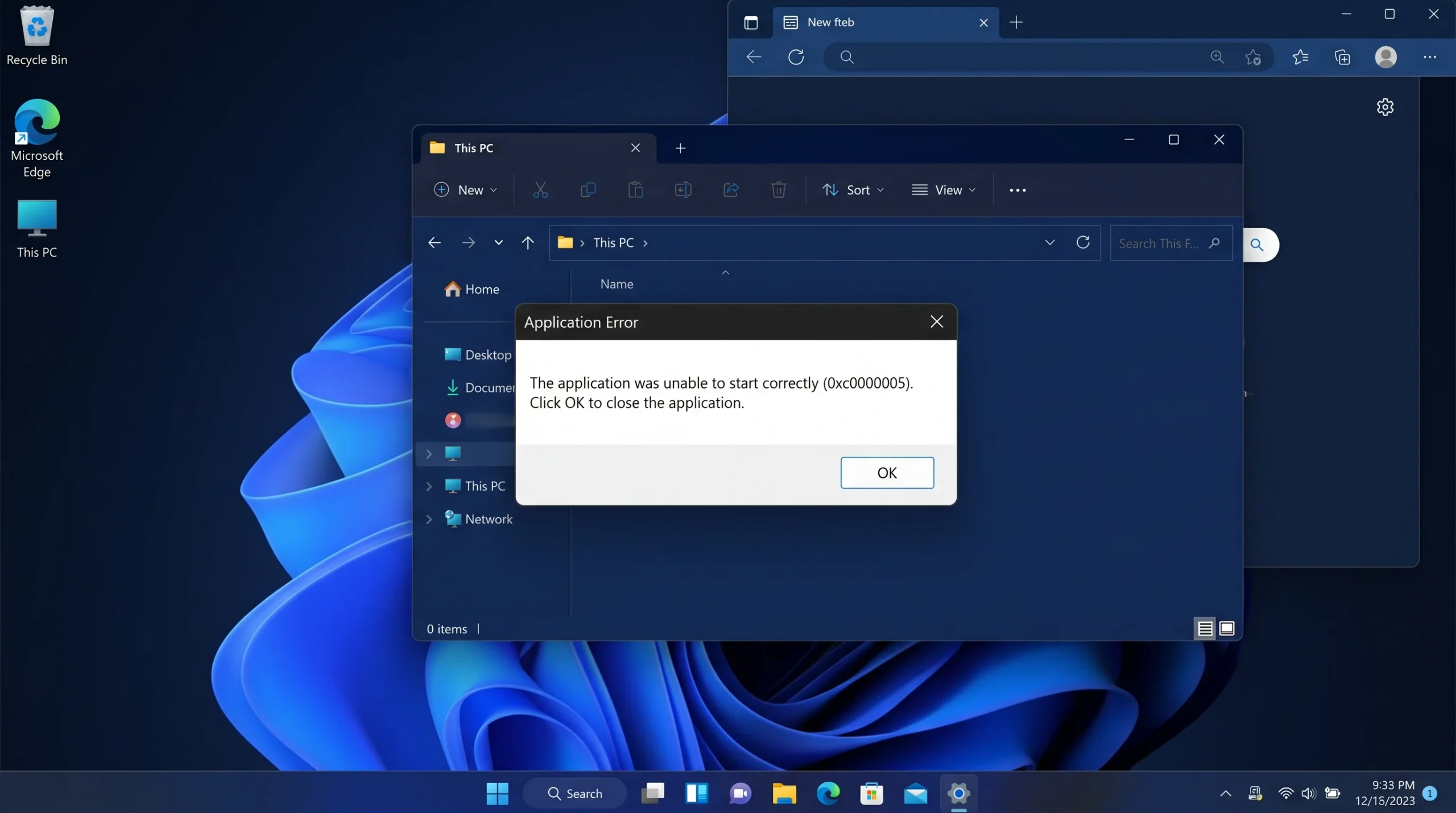
Windows 11 users sometimes encounter the frustrating Error 0xc0000005, also known as an Access Violation Error. This type of Windows problem may require system repair tools such as those explained in the official Microsoft Windows support documentation. This problem can prevent applications from opening, cause unexpected program crashes, or even interrupt Windows installation and system operations. The error usually appears when a program attempts to access a protected or invalid memory location.
If you are searching for how to fix Error 0xc0000005 in Windows 11, this guide provides practical solutions, from simple troubleshooting steps to advanced system repairs.
What Does Error 0xc0000005 Mean in Windows 11?
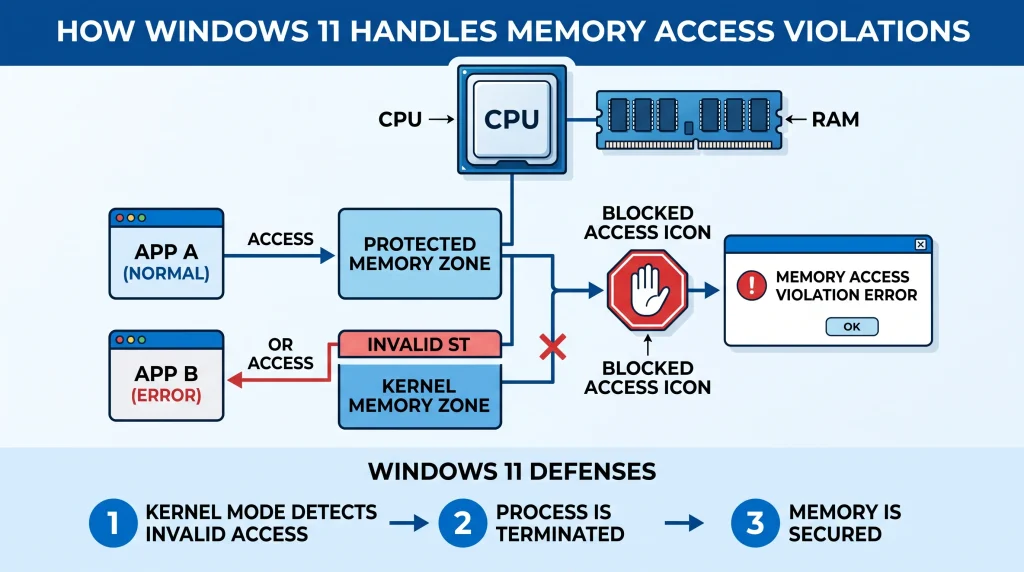
Error 0xc0000005 in Windows 11 indicates that an application or system process has attempted an unauthorized memory access. Windows blocks this action to protect system stability, resulting in application crashes or startup failures.
Common error messages include:
- “The application was unable to start correctly (0xc0000005).”
- “Access violation error.”
- “Exception code: 0xc0000005.”
- Application crashes while opening or running.
This error does not always point to one specific problem. It may be caused by damaged system files, faulty RAM, outdated drivers, incompatible software, malware, or security settings such as Data Execution Prevention (DEP). A sudden app crash accompanied by Error 0xc0000005 in Windows 11 usually points to an access violation issue.
Common Causes of Error 0xc0000005 in Windows 11
Understanding the cause helps you choose the correct repair method. Below are the most common reasons behind Windows 11 Error 0xc0000005.
1. Corrupted Windows System Files
Windows relies on thousands of system files to operate correctly. If important files become damaged due to failed updates, sudden shutdowns, or malware infections, applications may fail with Error 0xc0000005.
2. Faulty RAM or Memory Problems
Defective RAM can cause random crashes because applications cannot correctly store or retrieve data from memory. If multiple programs experience crashes, memory problems should be considered.
3. Outdated or Incompatible Drivers
Drivers connect Windows with hardware components such as graphics cards, storage devices, and network adapters. A corrupted or incompatible driver may trigger access violations.
4. Problematic Applications
If Error 0xc0000005 appears only when opening one application, the software installation itself may be damaged.
5. Malware or Security Conflicts
Some malware can modify system files or interfere with application memory operations. Antivirus programs may also occasionally block legitimate software. Running an SFC scan is a reliable first step to fix Error 0xc0000005 in Windows 11.
How to Fix Error 0xc0000005 in Windows 11
Follow these solutions in order, starting with the easiest fixes.
1. Restart Your Windows 11 Computer
Before trying advanced repairs, restart your PC.
A restart clears temporary memory problems, closes background processes, and reloads system components.
Steps:
- Click Start.
- Select Power.
- Choose Restart.
- Open the affected application again.
If the error disappears, it may have been caused by a temporary system conflict. Microsoft recommends using the System File Checker (SFC) tool to scan protected Windows system files and repair corrupted components. You can follow the official System File Checker repair guide for additional instructions. Damaged system files frequently trigger Error 0xc0000005 in Windows 11 right after a system update.
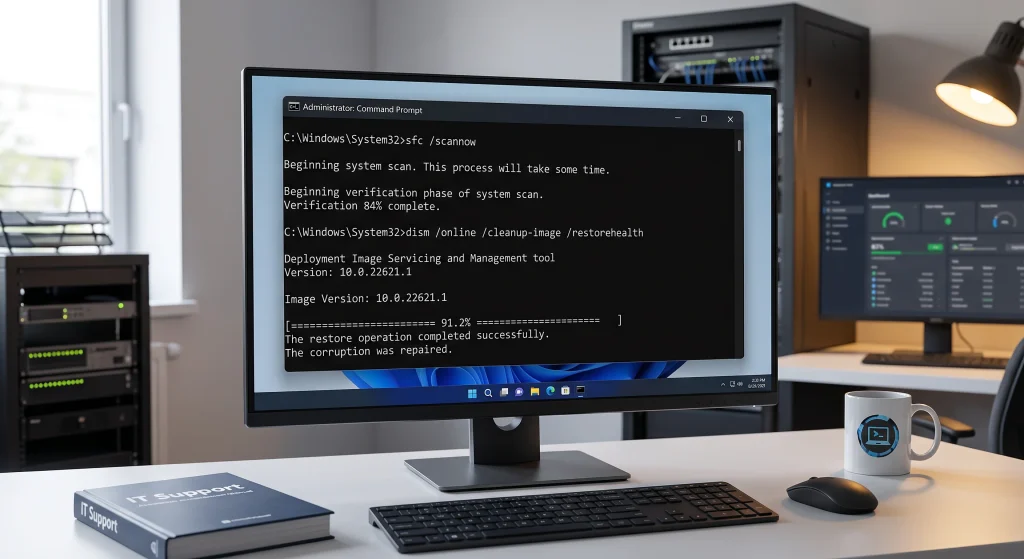
2. Run System File Checker (SFC)
Windows includes a built-in tool called System File Checker that scans and repairs corrupted system files.
Steps:
- Press Windows + S.
- Search for Command Prompt.
- Select Run as administrator.
- Enter:
sfc /scannow- Wait until the process completes.
- Restart your computer.
SFC replaces damaged protected Windows files with healthy versions stored by the operating system. Faulty RAM modules can easily cause Error 0xc0000005 in Windows 11 when launching heavy games.
3. Use DISM to Repair Windows Image Files
If SFC cannot repair all problems, use Deployment Image Servicing and Management (DISM). If SFC cannot repair damaged files, Windows administrators can use DISM to repair the Windows image. Microsoft provides detailed instructions in its DISM Windows image repair documentation.
Open Command Prompt as Administrator and run:
DISM /Online /Cleanup-Image /RestoreHealthAfter completion, run:
sfc /scannowRestart Windows 11 and check whether Error 0xc0000005 is resolved.
You can often eliminate Error 0xc0000005 in Windows 11 by repairing your installed visual C++ redistributables.
4. Check Your RAM Using Windows Memory Diagnostic
Memory issues are one of the possible causes of Error 0xc0000005.
Steps:
- Press Windows + R.
- Type:
mdsched.exe- Press Enter.
- Select:
Restart now and check for problems
Windows will restart and perform a memory test.
If errors appear, you may need to reseat or replace faulty RAM modules.
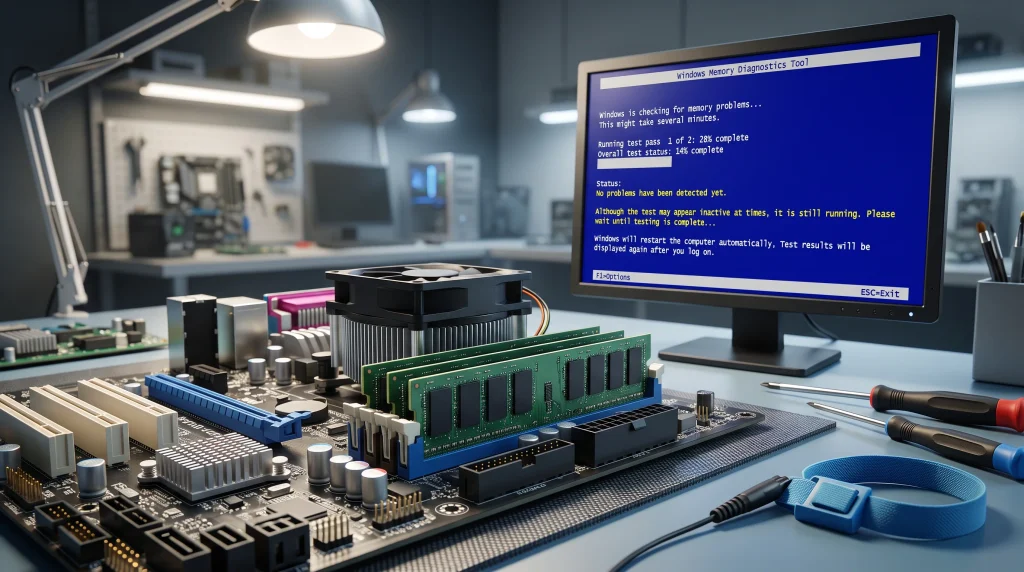
For additional information about diagnosing memory-related problems, see Microsoft’s Windows troubleshooting resources. Hardware-related problems can also affect smartphones and other devices. If you are troubleshooting touchscreen or hardware response issues on Android devices, see this guide about how to fix Android touchscreen not working problems. Aggressive third-party antivirus software might spark Error 0xc0000005 in Windows 11 during routine tasks.
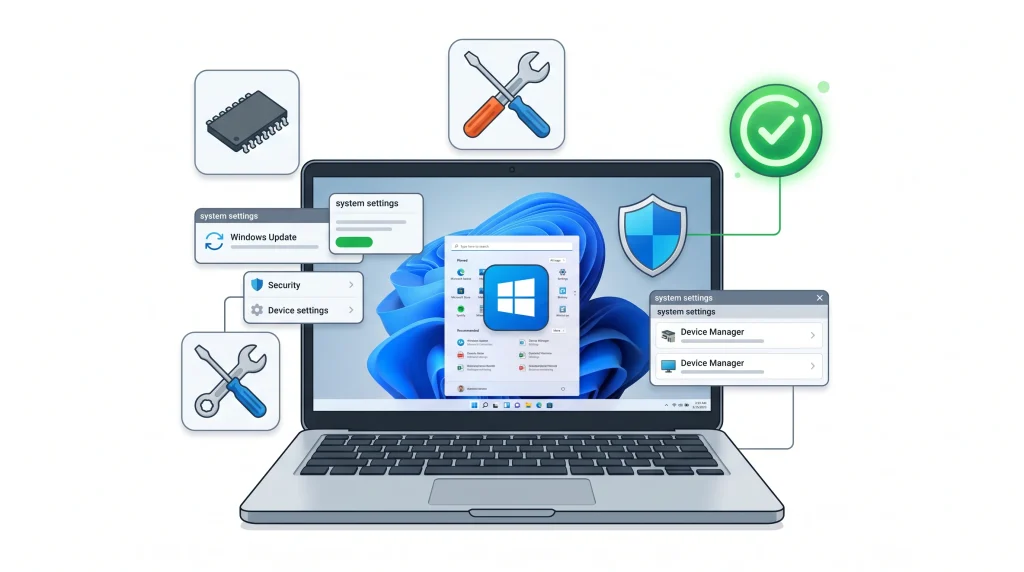
5. Update Windows 11 and Device Drivers
Driver problems frequently cause application crashes. Keeping Windows updated can help resolve compatibility issues. Check the latest updates through the official Windows Update guide from Microsoft.
Update Windows:
- Open Settings.
- Select Windows Update.
- Click Check for updates.
Update Drivers:
- Right-click Start.
- Select Device Manager.
- Update important drivers such as:
- Display adapter
- Storage controller
- Network adapter
If the error started after a driver update, rolling back that driver may help. Software update failures are not limited to Windows computers. Mobile devices can also experience update-related problems caused by storage issues, system errors, or connectivity problems. Learn more about how to fix iPhone update not working problems with these practical solutions. Updating outdated graphics drivers helps prevent Error 0xc0000005 in Windows 11 across multiple applications.
6. Disable Data Execution Prevention (DEP) for Specific Applications
Data Execution Prevention (DEP) is a Windows security feature that prevents harmful code execution. However, some older applications may conflict with DEP and trigger Error 0xc0000005.
Steps:
- Press Windows + R.
- Type:
sysdm.cpl- Open Advanced tab.
- Under Performance, click Settings.
- Select Data Execution Prevention.
- Add the affected application.
Only add trusted applications. Turning off Data Execution Prevention can sometimes bypass Error 0xc0000005 in Windows 11 for older programs.
7. Reinstall the Application Causing Error 0xc0000005
If only one program crashes:
- Open Settings.
- Go to Apps → Installed Apps.
- Find the problematic application.
- Click Uninstall.
- Download and install the latest version.
A damaged installation is a common reason for application startup failures. If Error 0xc0000005 appears when launching gaming platforms or desktop applications, reinstalling the software may resolve corrupted installation files. For Steam users, this troubleshooting guide explains how to fix Steam not opening issues on Windows using proven repair methods. Many gamers encounter Error 0xc0000005 in Windows 11 while booting up newly installed titles.
8. Scan Windows 11 for Malware
Malware infections can damage Windows components and cause memory access errors.
Use Windows Security:
- Open Windows Security.
- Select Virus & threat protection.
- Choose Full Scan.
- Wait until scanning completes.
9. Perform a Clean Boot
A clean boot starts Windows with minimal background services.
This helps identify whether third-party software is causing the problem.
Steps:
- Press Windows + R.
- Type:
msconfig- Open the Services tab.
- Select Hide all Microsoft services.
- Click Disable all.
- Restart your PC.
If Error 0xc0000005 disappears, enable services one by one to find the conflict.
10. Restore Windows 11 Using System Restore
If the error started after installing software, drivers, or updates, System Restore can return Windows to a previous working state.
Steps:
- Search Create a restore point.
- Open System Protection.
- Select System Restore.
- Choose a restore point.
- Follow the instructions.
Frequently Asked Questions About Error 0xc0000005 in Windows 11
Is Error 0xc0000005 caused by a virus?
Not always. While malware can trigger this error, other causes such as damaged files, faulty RAM, drivers, and software conflicts are more common. Similar software-related crashes can also happen in gaming applications. If you experience repeated game failures, corrupted files, or unexpected shutdowns, check this guide on how to fix Minecraft keeps crashing on Windows for additional troubleshooting methods.
Can bad RAM cause Error 0xc0000005?
Yes. Faulty memory can create invalid memory access problems and random application crashes.
Will reinstalling Windows 11 fix Error 0xc0000005?
A Windows reinstall may solve software-related problems, but it will not fix defective hardware such as damaged RAM.
Why does Error 0xc0000005 happen only with one program?
If only one application shows the error, the problem may be related to corrupted installation files, missing dependencies, or application compatibility issues.
Final Thoughts
Learning how to fix Error 0xc0000005 in Windows 11 does not require immediately reinstalling the operating system. Start with simple solutions such as restarting Windows, repairing system files with SFC and DISM, checking RAM, updating drivers, and reinstalling affected applications.
