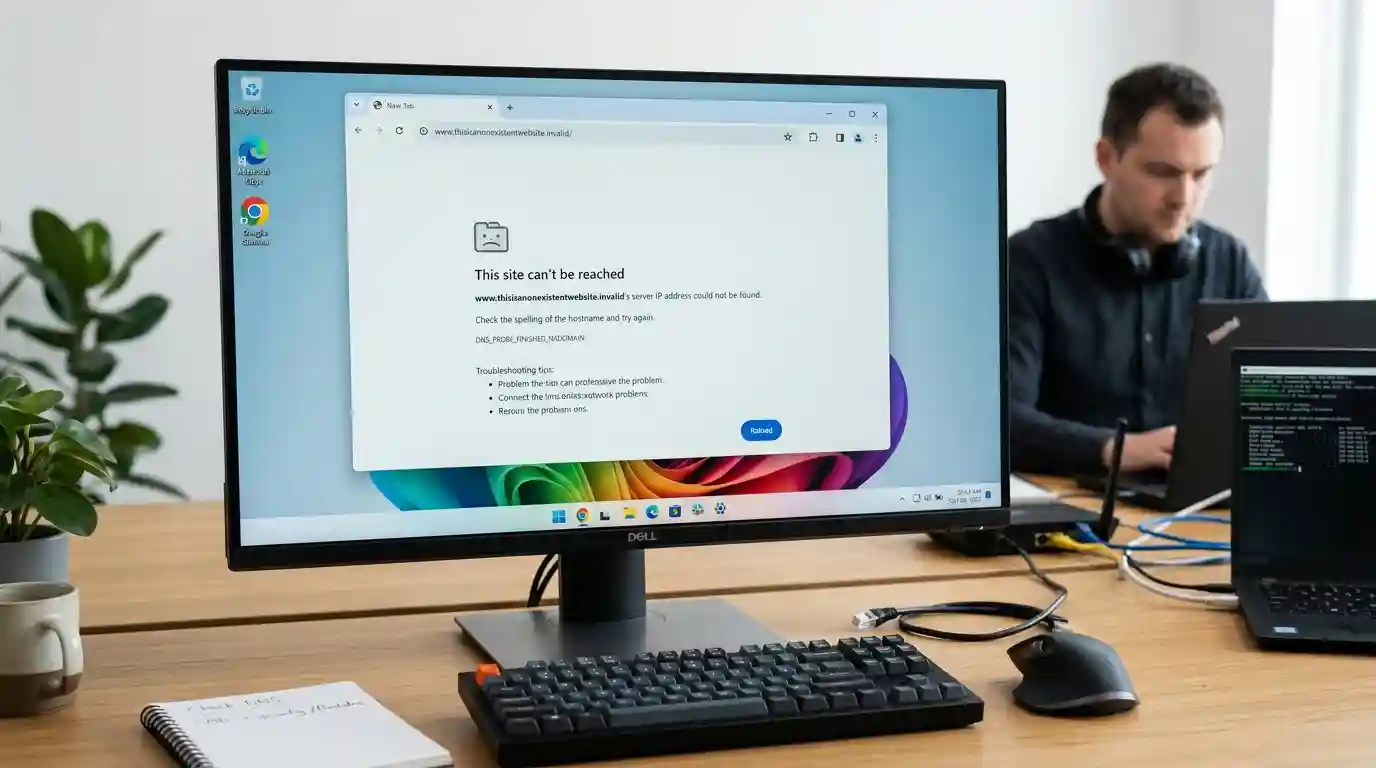
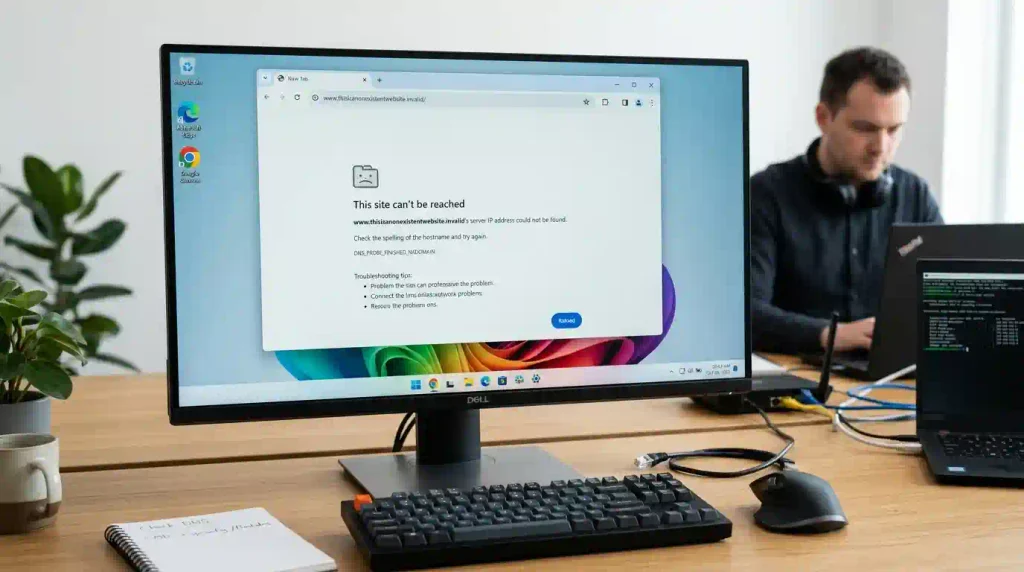
The DNS_PROBE_FINISHED_NXDOMAIN error is one of the most common browser connection problems that prevents users from accessing websites. If you are searching for how to Fix DNS_PROBE_FINISHED_NXDOMAIN, this guide explains why this error happens and how to solve it quickly on Windows, macOS, Chrome, and other devices.
This DNS error usually means your browser cannot find the IP address associated with a domain name. In simple terms, the DNS (Domain Name System) cannot translate the website address into a server location, causing the browser to display an NXDOMAIN message.
Fortunately, you can fix DNS_PROBE_FINISHED_NXDOMAIN using several methods, including restarting your network connection, clearing DNS cache, changing DNS servers, resetting network settings, and checking domain configuration.
What Does DNS_PROBE_FINISHED_NXDOMAIN Mean?
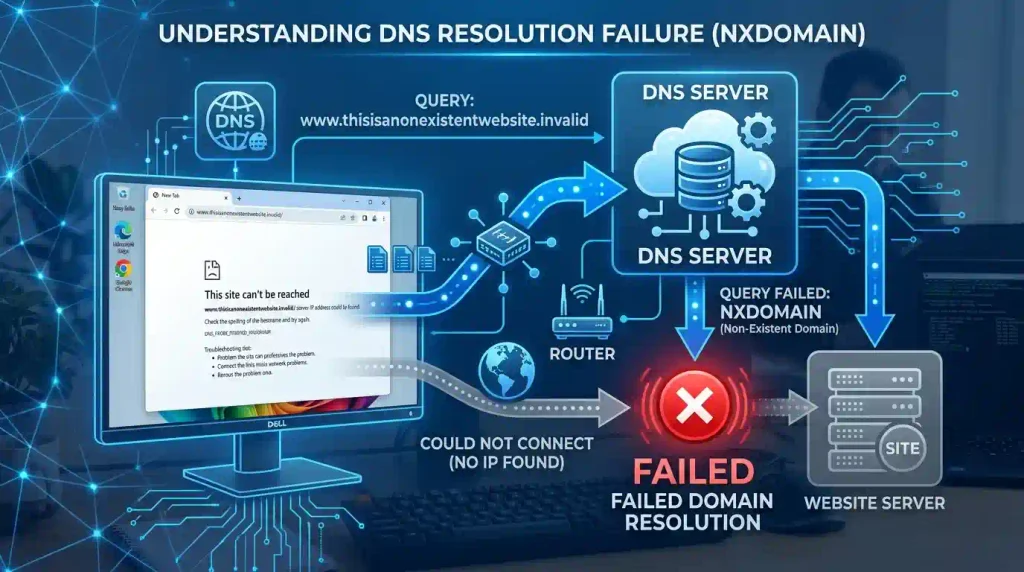
DNS_PROBE_FINISHED_NXDOMAIN stands for:
DNS Probe Finished – Non-Existent Domain
The error appears when a DNS lookup fails because the requested domain cannot be found.
Common browser messages include:
- “This site can’t be reached”
- “Server IP address could not be found”
- “DNS_PROBE_FINISHED_NXDOMAIN”
When this happens, your internet connection may still work normally, but your device cannot locate a specific website.
Why Does DNS_PROBE_FINISHED_NXDOMAIN Happen?
Before learning how to Fix DNS_PROBE_FINISHED_NXDOMAIN, it is important to understand the possible causes. Network configuration problems can sometimes appear together with Windows update failures. If your system cannot download or install updates correctly, follow this guide on how to fix Windows Update Error 0x80070057.
1. Incorrect DNS Settings
Your computer or router may be using DNS servers that are unavailable or incorrectly configured.
2. Browser DNS Cache Problems
Chrome and other browsers store DNS information to speed up browsing. Incorrect cached data can prevent websites from loading.
3. Expired Domain Name
If a website domain registration expires, DNS servers may no longer recognize the address.
4. Internet Service Provider DNS Problems
Some ISP DNS servers may experience temporary outages or incorrect domain resolution.
5. VPN or Security Software Conflicts
VPN applications, firewalls, and antivirus programs may interfere with DNS requests. Firewall settings, antivirus protection, or network restrictions can sometimes prevent applications from connecting properly. If Steam fails to launch or connect after troubleshooting your network, see this guide on how to fix Steam not opening issues.
How to Fix DNS_PROBE_FINISHED_NXDOMAIN Error
Follow these troubleshooting methods from the simplest solutions to advanced fixes.
1. Restart Your Router and Computer
The first step to Fix DNS_PROBE_FINISHED_NXDOMAIN is restarting your network equipment.
A restart can refresh:
- DNS connections
- IP address assignments
- Router cache
- Network services
Steps:
- Turn off your computer.
- Disconnect your router power cable.
- Wait 30 seconds.
- Turn the router back on.
- Restart your computer.
- Try opening the website again.
2. Check If the Website Is Actually Down
Sometimes the DNS error is caused by the website itself.
Before changing settings, check:
- Is the domain spelled correctly?
- Does the website open on another device?
- Does another network access the website?
If only one website fails, the problem may be related to the domain rather than your computer.
3. Clear Google Chrome DNS Cache
Chrome maintains its own DNS cache separate from Windows.
Steps:
- Open Google Chrome.
- Enter:
chrome://net-internals/#dns- Click:
Clear host cache
- Restart Chrome.
This removes outdated DNS information stored by the browser. Google provides official information about managing Chrome settings and resolving browser-related issues through its Google Chrome Help Center.
4. Flush DNS Cache in Windows
Windows stores DNS records locally to improve browsing speed. Corrupted DNS cache can trigger DNS errors.
Steps:
- Press:
Windows + R- Type:
cmd- Run Command Prompt as Administrator.
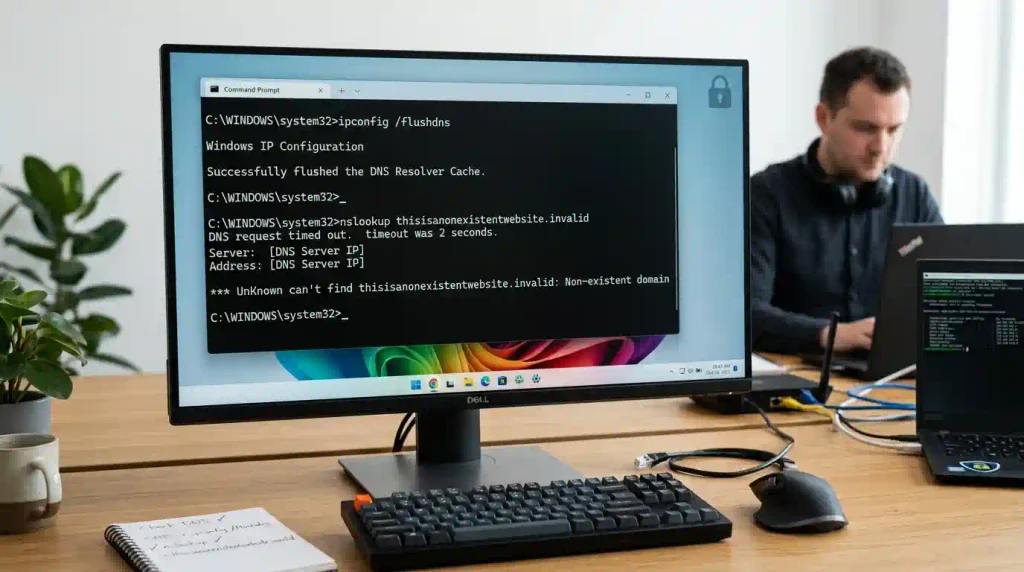
Enter:
ipconfig /flushdnsYou should see:
Successfully flushed the DNS Resolver Cache.Restart your browser and test the website.
5. Restart DNS Client Service
Windows DNS Client manages DNS resolution requests.
Steps:
- Press:
Windows + R- Type:
services.msc- Find:
DNS Client- Restart the service.
This can refresh DNS communication without restarting the entire computer.
6. Change DNS Server Address
Using a more reliable DNS provider can often resolve DNS_PROBE_FINISHED_NXDOMAIN.
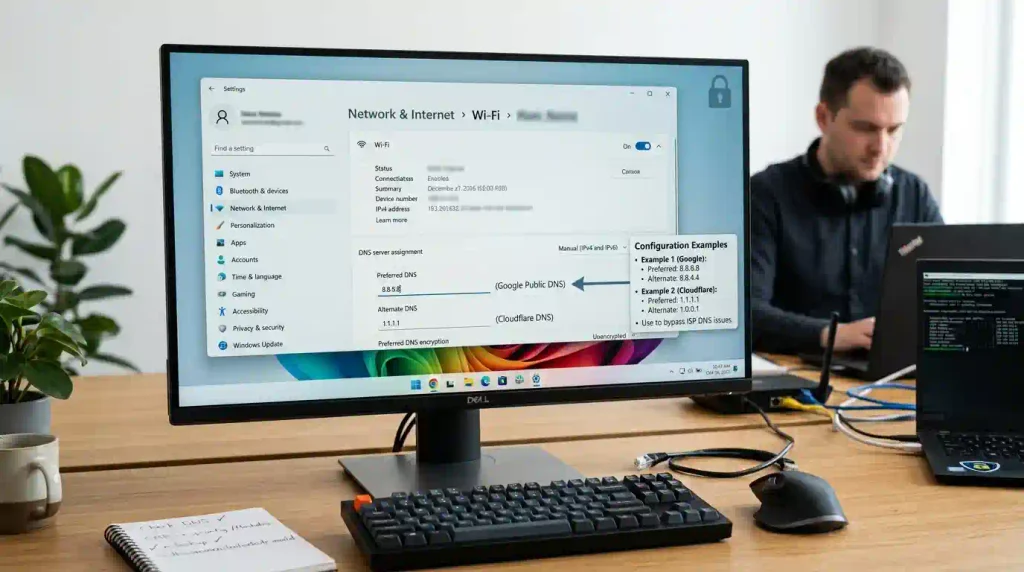
Recommended DNS servers:
Google DNS
8.8.8.8
8.8.4.4
Cloudflare DNS
1.1.1.1
1.0.0.1
Steps:
- Open Control Panel.
- Select Network and Internet.
- Open Network Connections.
- Select your adapter.
- Choose Internet Protocol Version 4 (TCP/IPv4).
- Enter the new DNS addresses.
Restart your browser. Using a reliable DNS provider can improve domain resolution and may help fix DNS-related connection problems. Cloudflare provides a public DNS service with setup instructions through its DNS learning resources.
7. Reset Network Configuration
Incorrect network settings may prevent DNS requests from working properly.
Open Command Prompt as Administrator.
Run:
netsh winsock reset

netsh int ip reset

ipconfig /release

ipconfig /renew

ipconfig /flushdns
Restart Windows after completing the commands. Windows includes built-in networking tools to diagnose and repair connection problems. Windows system errors can sometimes be caused by corrupted files, incorrect configurations, or damaged components. For deeper Windows troubleshooting, check this guide about fixing Error 0xc0000005 in Windows 11. Microsoft provides additional guidance through its official Windows network troubleshooting guide.
8. Disable VPN and Proxy Settings
VPN and proxy services can modify DNS routing.
Check Proxy:
- Open Windows Settings.
- Go to:
Network & Internet → Proxy- Disable unnecessary proxy settings.
If you use a VPN:
- Disconnect temporarily.
- Test the website again.
9. Disable Antivirus Temporarily
Security software may block DNS communication.
Try temporarily disabling:
- Third-party antivirus
- Firewall applications
- Internet security tools
If the website works afterward, adjust your security settings instead of leaving protection disabled. DNS and network problems can also affect online games, causing connection failures or unexpected crashes. If Minecraft continues crashing after checking your connection settings, read this guide on how to fix Minecraft keeps crashing problems.
10. Reset Chrome Browser Settings
Browser extensions can sometimes interfere with DNS requests.
Steps:
- Open Chrome Settings.
- Select:
Reset settings- Choose:
Restore settings to their original defaultsRestart Chrome.
11. Check Domain DNS Configuration
If you own the website, DNS_PROBE_FINISHED_NXDOMAIN may indicate a domain configuration problem.
Check:
- Domain registration status
- DNS records
- Nameserver settings
- A record and CNAME configuration
Incorrect DNS records can make a website unavailable worldwide.
12. Contact Your Internet Provider
If all devices show the same DNS error, your ISP may have a DNS problem.
Contact your provider and ask them to check:
- DNS server availability
- Domain resolution issues
- Network routing problems

Frequently Asked Questions
Is DNS_PROBE_FINISHED_NXDOMAIN caused by my internet connection?
Not always. Your internet may work correctly while DNS resolution fails.
Does changing DNS fix DNS_PROBE_FINISHED_NXDOMAIN?
Yes. Switching to Google DNS or Cloudflare DNS can resolve problems caused by unreliable ISP DNS servers.
Can clearing DNS cache fix this error?
Yes. Old or corrupted DNS records are common causes of DNS_PROBE_FINISHED_NXDOMAIN.
Is DNS_PROBE_FINISHED_NXDOMAIN dangerous?
No. It is usually a DNS configuration problem, not malware or hardware damage.
Final Thoughts
Learning how to Fix DNS_PROBE_FINISHED_NXDOMAIN can help restore access to websites without reinstalling software or changing hardware. In most cases, the issue is caused by incorrect DNS settings, cached DNS data, browser problems, or temporary network failures.
Start with simple solutions like restarting your router, clearing browser cache, and flushing DNS records. If the problem continues, changing DNS servers or resetting network settings can usually restore normal browsing.
