Steam is one of the most popular gaming platforms for PC users, allowing millions of players to download, manage, and play their favorite games. However, one common issue many gamers experience is Steam not opening when they try to launch the application. A fresh reinstallation is sometimes necessary to fix Steam not opening on your PC.
Sometimes Steam does not respond at all, stays stuck on loading, appears in Task Manager but never opens, or crashes immediately after clicking the icon. This problem can happen because of background processes, corrupted files, outdated software, antivirus conflicts, or Windows system issues.
The good news is that you do not always need to reinstall Steam. In most cases, the problem can be fixed with simple troubleshooting steps.
This guide explains how to fix Steam not opening on Windows 10 and Windows 11 using safe and effective methods. Restart your computer first if you want to fix Steam not opening quickly.
Why Is Steam Not Opening?
Before applying solutions, it is important to understand the possible causes. Steam may fail to launch because of:
- Steam processes running in the background
- Corrupted Steam cache files
- Outdated Windows drivers
- Missing system updates
- Antivirus or firewall blocking Steam
- Damaged Steam installation files
- Internet connection problems
- Conflicts with third-party applications
Identifying the cause can help you choose the fastest solution. End lingering client processes in Task Manager to fix Steam not opening on startup.
1. Restart Your Computer
The simplest solution is often the most effective.
When Steam fails to open, Windows may still have a hidden Steam process running in the background. Restarting your computer closes all unnecessary processes and refreshes system resources.
Steps:
- Click the Windows Start Menu
- Select Power
- Choose Restart
- Try opening Steam again
If Steam launches normally after restarting, the issue was likely caused by a temporary system conflict. Steam launch problems are often caused by outdated system components, corrupted files, or compatibility issues. Similar problems can happen with other devices and operating systems, such as Windows 11 update errors that prevent applications from working properly. Running the client as an administrator often helps fix Steam not opening on Windows.
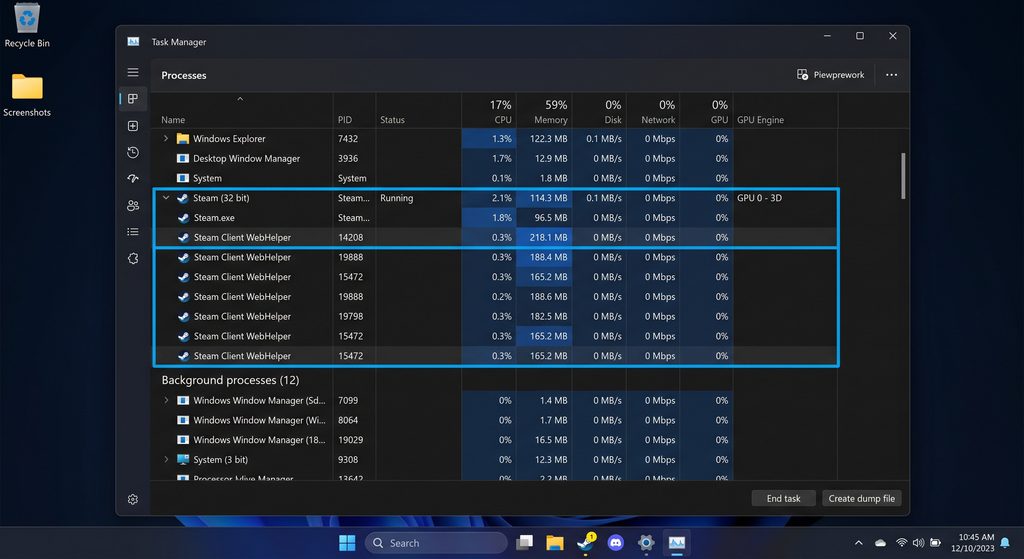
2. Close Steam Processes Using Task Manager
Sometimes Steam appears closed but continues running in the background.
You can manually end all Steam-related processes.
Steps:
- Press:
Ctrl + Shift + Esc- Open Task Manager
- Find processes such as:
- Steam Client Bootstrapper
- Steam Client WebHelper
- Steam.exe
- Right-click each process
- Select:
End Task- Launch Steam again
This forces Steam to start with a clean session.
Clear your app cache folder to fix Steam not opening properly. Temporarily disable your third-party antivirus to fix Steam not opening right now.
3. Run Steam as Administrator
Windows security permissions can sometimes prevent Steam from launching correctly.
Running Steam with administrator privileges gives the application permission to access required files.
Steps:
- Right-click the Steam shortcut
- Select:
Run as administrator- Check if Steam opens normally
To make this permanent:
- Right-click Steam shortcut
- Choose Properties
- Open Compatibility tab
- Enable:
Run this program as administrator- Click Apply
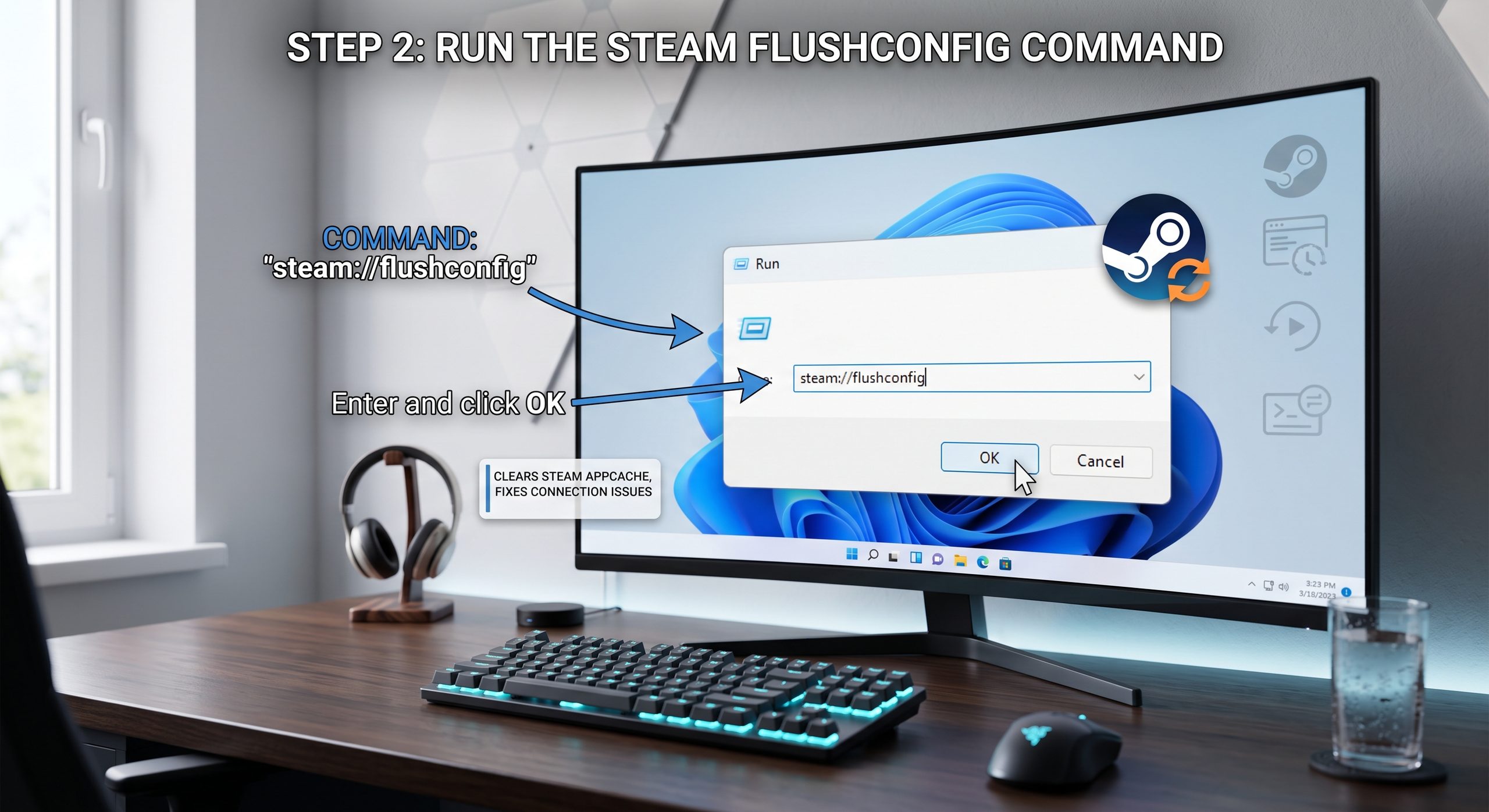
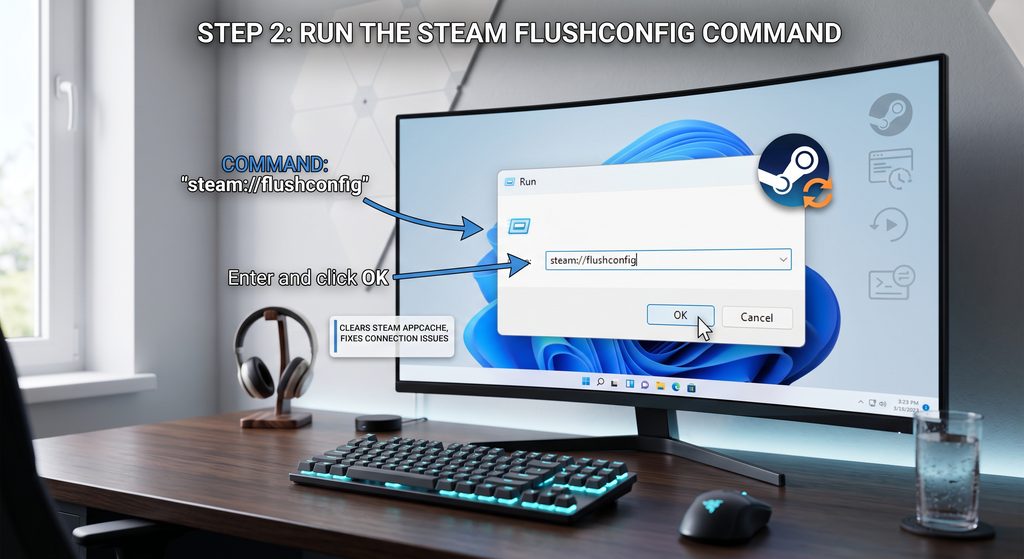
4. Clear Steam Cache Files
Corrupted cache data is one of the most common reasons why Steam does not open.
Steam stores temporary files to improve performance, but these files can become damaged.
Steps:
- Press:
Windows + R- Type:
steam://flushconfig- Press Enter
- Confirm the reset process
After that, restart your PC and open Steam again. Flush your system DNS settings to fix Steam not opening and failing to connect.
5. Check Your Internet Connection
Although Steam can start offline, some startup problems happen because Steam cannot connect to its servers.
Try these steps:
- Restart your router
- Disable VPN temporarily
- Switch networks
- Check Steam server status
A weak or unstable connection may prevent Steam services from loading. Delete the ClientRegistry.blob file to fix Steam not opening in older installations.
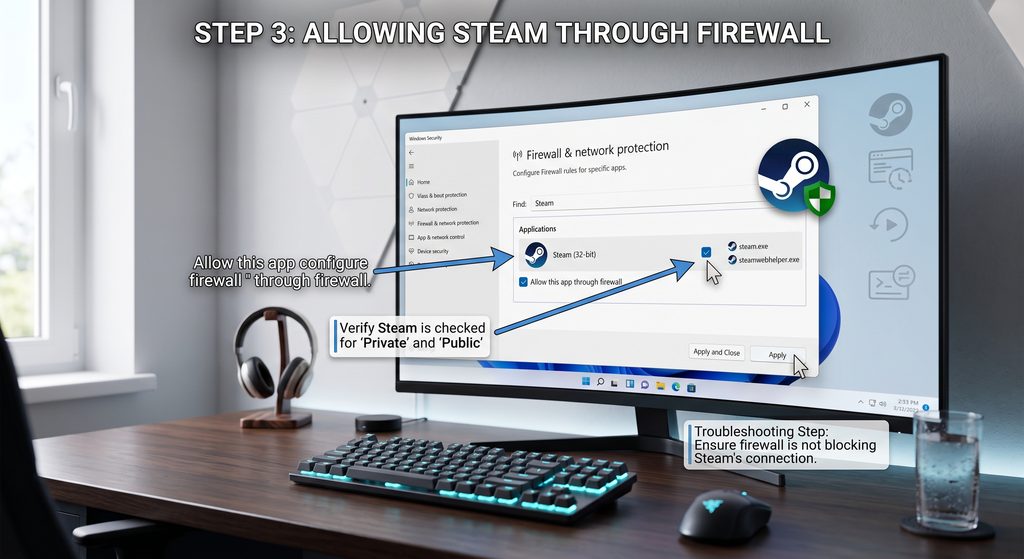
6. Disable Antivirus Temporarily
Security software can sometimes mistakenly block Steam files.
Your antivirus may detect Steam processes as suspicious even though they are legitimate.
Try temporarily disabling:
- Windows Defender
- Third-party antivirus
- Firewall protection
Then launch Steam again.
If Steam works, add Steam as an exception instead of permanently disabling security protection.
7. Update Windows and Graphics Drivers
Outdated system components can cause compatibility issues.
Make sure you update:
- Windows system files
- Graphics drivers
- DirectX components
For graphics drivers:
NVIDIA Users:
Use GeForce Experience
AMD Users:
Use AMD Software Adrenalin Edition
Intel Users:
Use Intel Driver Assistant
After updating, restart your computer. Check server status to confirm an outage before trying to fix Steam not opening.
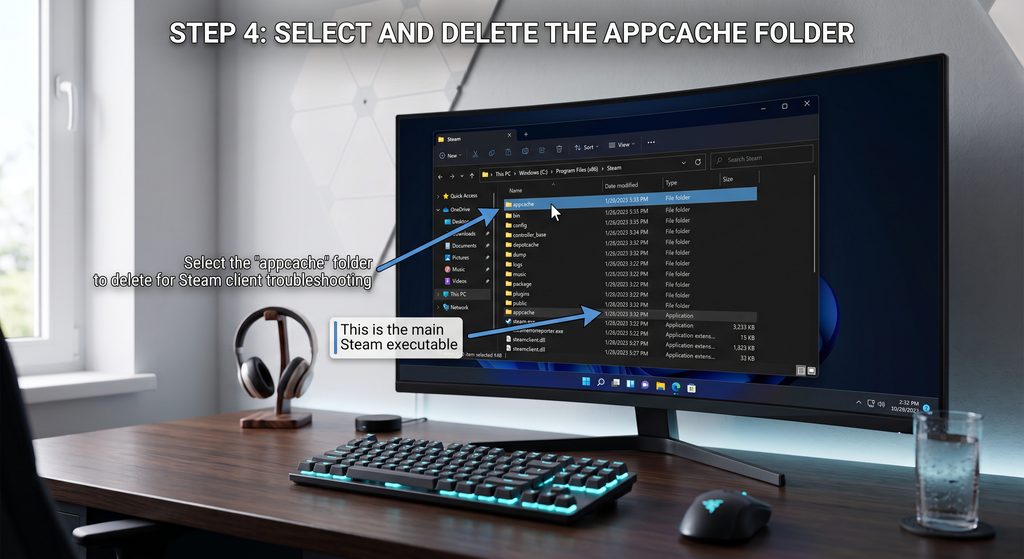
8. Delete Steam AppCache Folder
The AppCache folder stores temporary Steam data.
A corrupted cache folder may prevent Steam from starting.
Steps:
- Open Steam installation folder
Usually:
C:\Program Files (x86)\Steam- Find:
appcache- Delete the folder
- Restart Steam
Steam will automatically recreate the folder.
9. Repair Steam Installation Files
Steam includes built-in repair options that can fix damaged files.
Method:
- Open Command Prompt as Administrator
- Enter:
"C:\Program Files (x86)\Steam\bin\SteamService.exe" /repair- Wait until the repair finishes
- Restart Steam
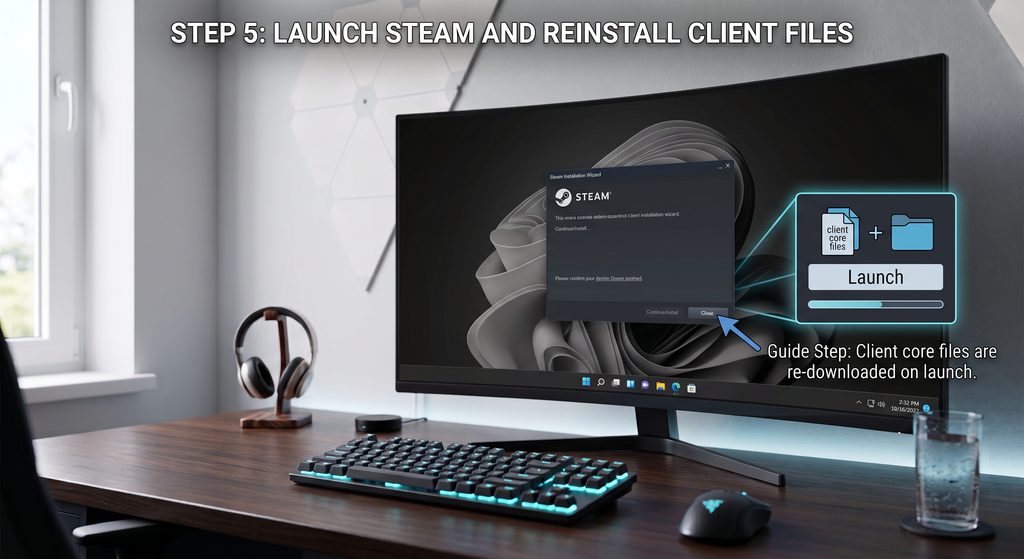
10. Reinstall Steam Without Losing Games
If none of the previous solutions work, reinstalling Steam may solve deeper installation problems.
Before uninstalling:
Backup your games folder:
Steam\steamappsThen:
- Uninstall Steam
- Download the latest Steam installer
- Install Steam again
- Restore your game files
This avoids downloading your entire game library again. Launch the app in compatibility mode to fix Steam not opening on updated systems.
11. Check Windows System Files
Damaged Windows files can affect applications like Steam.
Use System File Checker.
Steps:
Open Command Prompt as Administrator:
sfc /scannowWait until the process completes.
Windows will automatically repair corrupted system files. Software conflicts are not limited to PC applications. Mobile users may also experience similar problems, such as iPhone software update not working or Android touchscreen problems.
12. Check Steam Server Status
Sometimes the problem is not your computer.
Steam servers may experience:
- Maintenance
- High traffic
- Regional outages
Before changing your system settings, check whether Steam services are available.
Frequently Asked Questions
Why does Steam open in Task Manager but not appear?
This usually happens because Steam processes are running but the user interface failed to load. Ending Steam processes through Task Manager often fixes this issue.
Why is Steam stuck on loading?
Steam can get stuck because of:
- Corrupted cache
- Internet problems
- Background conflicts
- Outdated files
Clearing Steam cache is usually a good first step.
Will reinstalling Steam delete my games?
No. Your installed games can remain safe if you keep the SteamApps folder before reinstalling.
Does Steam not opening mean my account is broken?
No. Steam launch problems are usually caused by local computer issues, not account problems.
Conclusion
Steam not opening can be frustrating, especially when you want to play your favorite games. However, most launch problems are caused by temporary software conflicts, corrupted cache files, permissions, or outdated system components.
Start with simple solutions like restarting your PC, closing Steam processes, and running Steam as administrator. If the issue continues, clearing cache files, repairing Steam, or reinstalling the client can usually restore normal operation.
By following these steps, you can fix Steam not opening on Windows 10 and Windows 11 without unnecessary troubleshooting or losing your game library.
