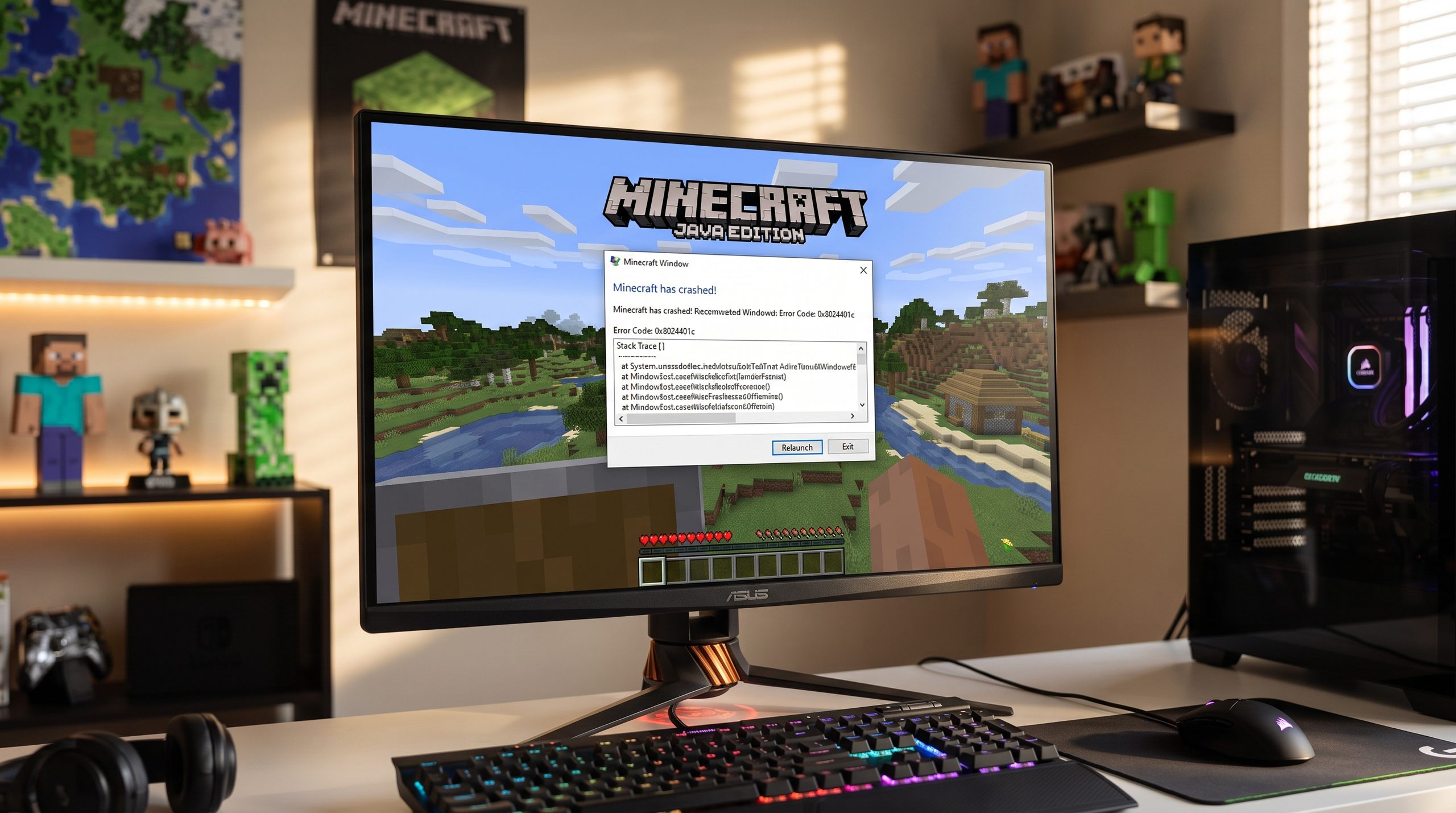
Minecraft is one of the most popular sandbox games in the world, but even a game as stable as Minecraft can sometimes experience unexpected crashes. Many players search for how to fix Minecraft keeps crashing because the game may suddenly close during startup, while loading a world, joining a server, or playing with mods.
Minecraft crashes can happen because of many reasons, including outdated graphics drivers, corrupted game files, incompatible mods, Java problems, insufficient RAM allocation, or conflicts with other applications running in the background.
Minecraft crashes can happen because of outdated files, launcher problems, or compatibility issues. If you need official troubleshooting information, you can also check the Minecraft Help Center for additional solutions.
The good news is that most Minecraft crashing problems can be fixed without reinstalling the entire game. This guide covers the most effective solutions to fix Minecraft crashes on Windows 10 and Windows 11.
Similar launch problems can also happen with other gaming platforms. If you are experiencing issues with another game client, check our guide on Steam not opening problems to learn how to fix launcher errors and startup failures. Update your graphics drivers immediately to fix Minecraft keeps crashing on startup.
Why Does Minecraft Keep Crashing?
Before learning how to fix Minecraft keeps crashing, it is important to understand what causes the problem.
Common reasons include:
1. Outdated Graphics Drivers
Minecraft relies heavily on your GPU. Old or corrupted drivers can cause:
- Game crashes
- Black screens
- Freezing
- Low FPS
Updating your NVIDIA, AMD, or Intel graphics driver can often solve these problems.
2. Too Many Mods or Incompatible Mods
Minecraft mods improve gameplay, but incompatible mods can easily cause crashes.
Common issues:
- Wrong Minecraft version
- Missing dependencies
- Mod conflicts
- Corrupted mod files
3. Insufficient RAM Allocation
Minecraft Java Edition requires enough memory to run smoothly.
If Minecraft does not have enough RAM, you may experience:
- Random crashes
- Long loading times
- Freezing
Allocating more RAM in the launcher can fix Minecraft keeps crashing during heavy gameplay
4. Corrupted Minecraft Files
Game files can become damaged because of:
- Failed updates
- Launcher errors
- Antivirus interference
- Improper shutdown
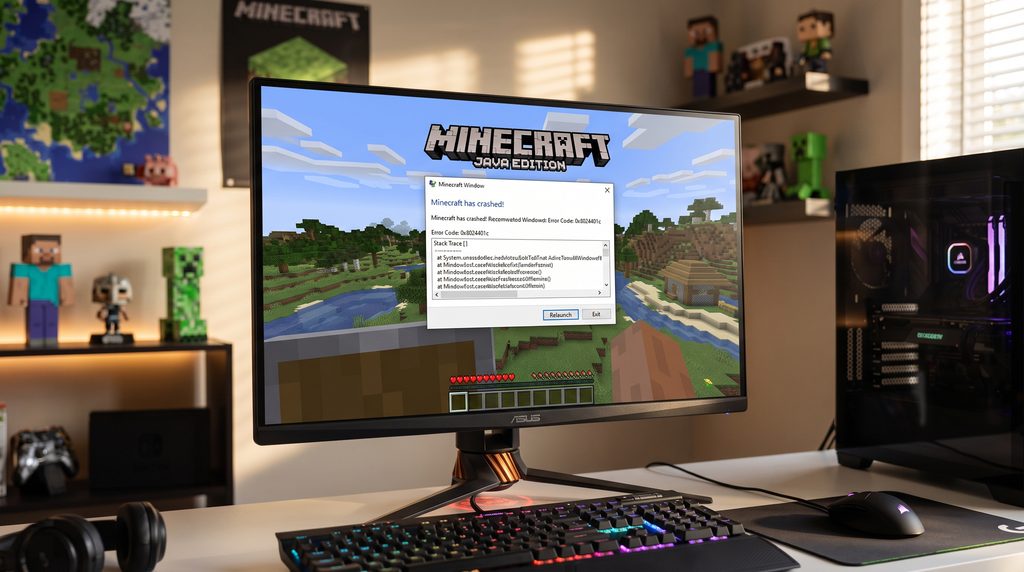
Remove corrupted mods from your directory to fix Minecraft keeps crashing when loading worlds.
1. Restart Your Computer
The easiest solution is restarting your PC.
Sometimes Minecraft crashes because background applications consume too many resources.
Restarting your computer will:
- Clear temporary memory
- Close conflicting programs
- Refresh Windows processes
After restarting, open Minecraft again and check if the problem is solved.
Restarting a device can solve many temporary software problems. This method is also useful for mobile issues, including Android touchscreen problems caused by system glitches. Reinstall the latest Java version to fix Minecraft keeps crashing without an error code.
2. Update Minecraft Launcher
An outdated launcher can cause Minecraft crashing problems.
Follow these steps:
- Open Microsoft Store
- Go to Library
- Click Update
- Install available Minecraft Launcher updates
Using the latest Minecraft Launcher version ensures better compatibility, improved performance, and fewer startup problems.
Keeping software updated is important for stability across all devices. Similar problems can happen on mobile devices, such as iPhone update problems when installing the latest iOS version. Disabling heavy resource packs will quickly fix Minecraft keeps crashing on low-end PCs.
3. Update Graphics Drivers
Graphics driver problems are one of the most common causes of Minecraft crashes.
Keeping Windows components updated helps prevent compatibility problems. If your operating system has update failures, follow our guide on fix Windows Update problems to repair Windows update errors.
NVIDIA Users
Players using NVIDIA graphics cards should regularly update NVIDIA graphics drivers to improve Minecraft stability and prevent GPU-related crashes.
Update through:
- NVIDIA GeForce Experience
AMD Users
AMD users can install the latest AMD graphics driver updates to fix compatibility problems between Minecraft and their graphics hardware.
Update through:
- AMD Software Adrenalin Edition
Intel Users
Update through:
- Intel Driver & Support Assistant
After updating drivers, restart your PC before launching Minecraft.
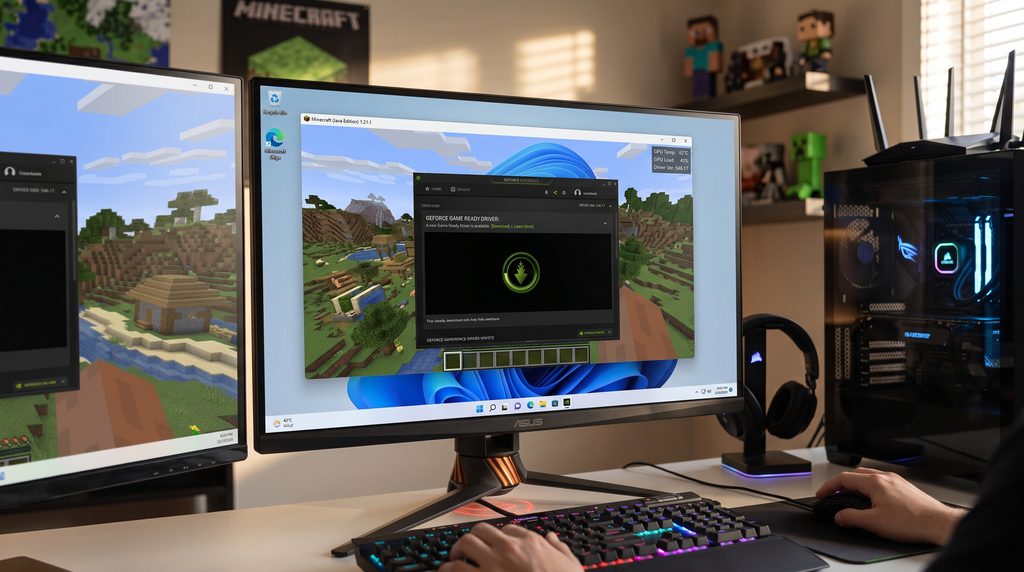
Check your crash logs carefully to fix Minecraft keeps crashing every few minutes.
4. Allocate More RAM to Minecraft
Minecraft Java Edition allows users to increase allocated memory.
Steps:
- Open Minecraft Launcher
- Go to Installations
- Select your Minecraft version
- Click More Options
- Find JVM Arguments
Example:
-Xmx4G
This gives Minecraft 4GB RAM.
Recommended allocation:
- 4GB RAM for normal gameplay
- 6GB RAM for modded Minecraft
Avoid allocating all available RAM because Windows also needs memory. Resetting your user settings often helps fix Minecraft keeps crashing on Windows 11.
5. Remove Problematic Mods
If Minecraft crashes after installing mods, the mods are likely causing the issue.
Try:
- Open Minecraft folder : .minecraft
- Open: mods
- Remove recently installed mods
- Launch Minecraft again
Add mods one by one to find the problematic file.
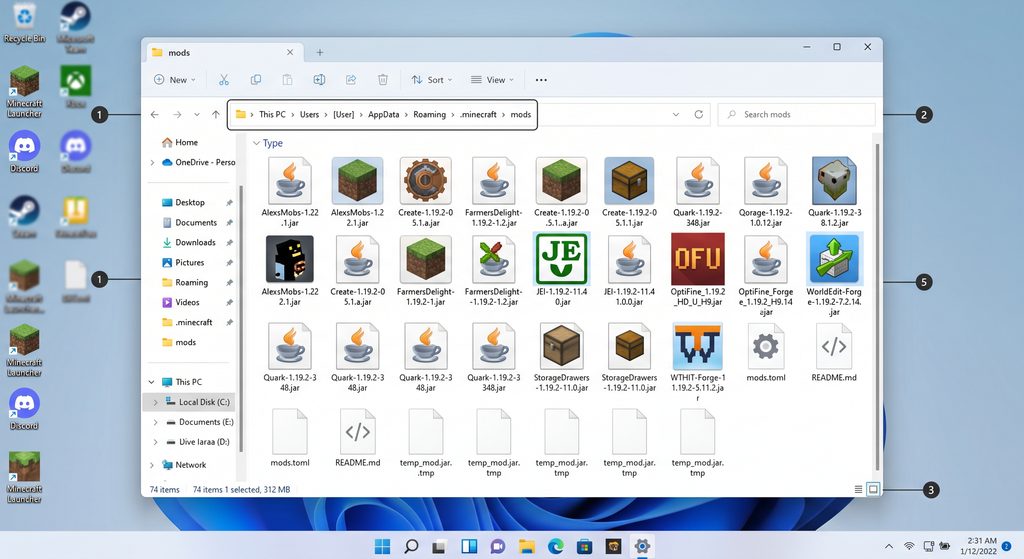
Verify your game files through the launcher to fix Minecraft keeps crashing randomly.
6. Update Java for Minecraft Java Edition
Minecraft Java Edition depends on the correct Java Runtime Environment to run properly, and outdated Java installations may cause launcher crashes. Minecraft Java Edition requires Java components to work properly.
Java problems may cause:
- Exit Code 1
- Launcher crashes
- Game closing immediately
Make sure you have the correct Java version installed for your Minecraft version. Lowering render distance in the video settings can fix Minecraft keeps crashing constantly.
7. Disable Shader Packs Temporarily
Shaders improve Minecraft graphics but require more GPU power.
Heavy shaders may cause:
- GPU overload
- Low FPS
- Game crashes
To disable shaders:
- Open Minecraft
- Go to Video Settings
- Select Shaders
- Choose OFF
Test the game without shaders.
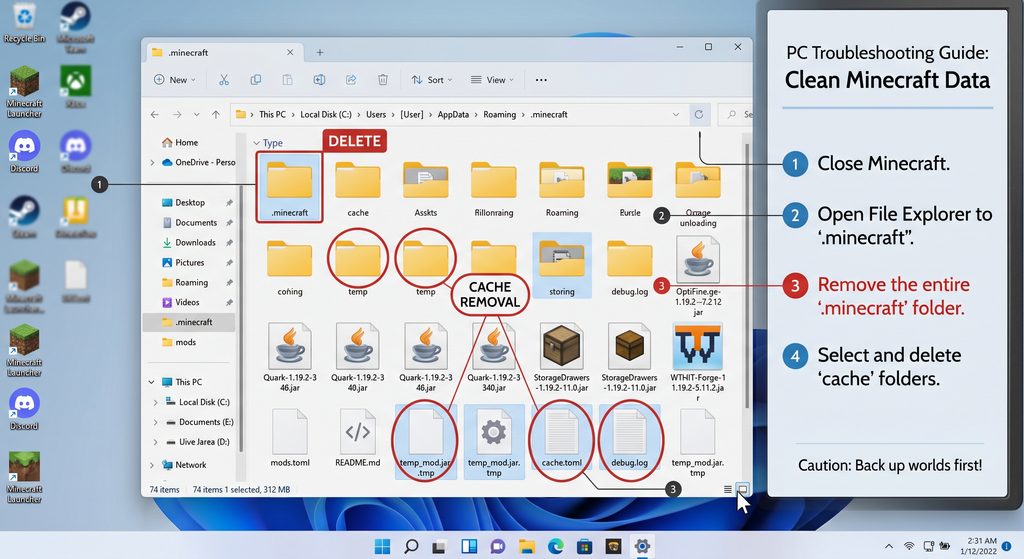
8. Delete Minecraft Cache Files
Temporary files can become corrupted.
Steps:
- Press : Windows + R
- Type : %appdata%
- Open : .minecraft
- Delete : cache
Restart Minecraft afterward.
9. Repair Minecraft Installation
Windows users can use the built-in Windows app repair feature to fix damaged applications without reinstalling everything. If Minecraft files are damaged, repair the installation.
Windows steps:
- Open Settings
- Select Apps
- Find Minecraft Launcher
- Click Advanced Options
- Select Repair
Windows will attempt to fix corrupted files.
10. Disable Background Applications
Some programs may conflict with Minecraft.
Common examples:
- Discord overlay
- Screen recording software
- Antivirus scanning
- Browser with many tabs
Close unnecessary applications before launching Minecraft.
11. Reduce Minecraft Graphics Settings
High settings can overload weaker computers.
Recommended settings:
- Lower Render Distance
- Disable fancy graphics
- Reduce particles
- Lower resolution
This can improve Minecraft stability.
12. Reinstall Minecraft as Final Solution
If all methods fail, reinstalling Minecraft may fix deeper problems.
Before reinstalling:
Backup:
.minecraft/saves
Your worlds will remain safe.
Then:
- Remove Minecraft Launcher
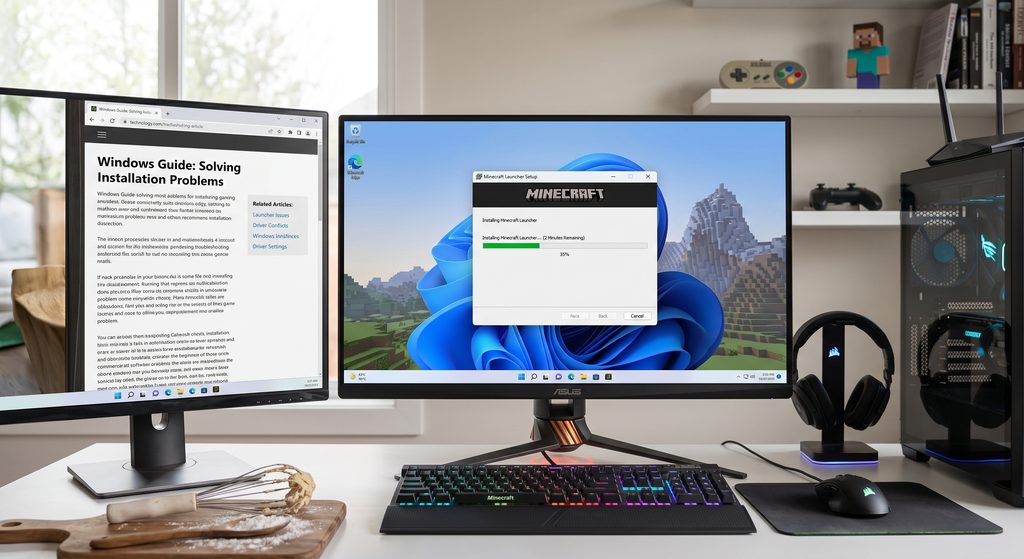
- Download the latest version
- Install again
- Restore saved worlds
Frequently Asked Questions
Why does Minecraft keep crashing when I open it?
Minecraft may crash during startup because of corrupted files, outdated drivers, incompatible mods, or Java problems.
How do I fix Minecraft crashing on Windows 11?
how to fix Minecraft keeps crashing on Windows 11:
- Update graphics drivers
- Update Minecraft Launcher
- Allocate more RAM
- Remove incompatible mods
- Repair game files
Does reinstalling Minecraft delete my worlds?
No. Your worlds are stored separately. Always backup your .minecraft/saves folder before reinstalling.
Why does Minecraft crash with Exit Code 1?
Minecraft Exit Code 1 is usually related to Java errors, incompatible mods, or incorrect launcher settings.
Conclusion
Minecraft crashes can be frustrating, especially when you are enjoying a survival world or playing with friends. However, most problems can be solved by following the correct troubleshooting steps.
If you are looking for how to fix Minecraft keeps crashing, start with simple solutions like restarting your computer, updating drivers, removing problematic mods, and repairing Minecraft files.
By applying these 12 proven methods, you can improve Minecraft stability and enjoy smoother gameplay on Windows 10 and Windows 11.
