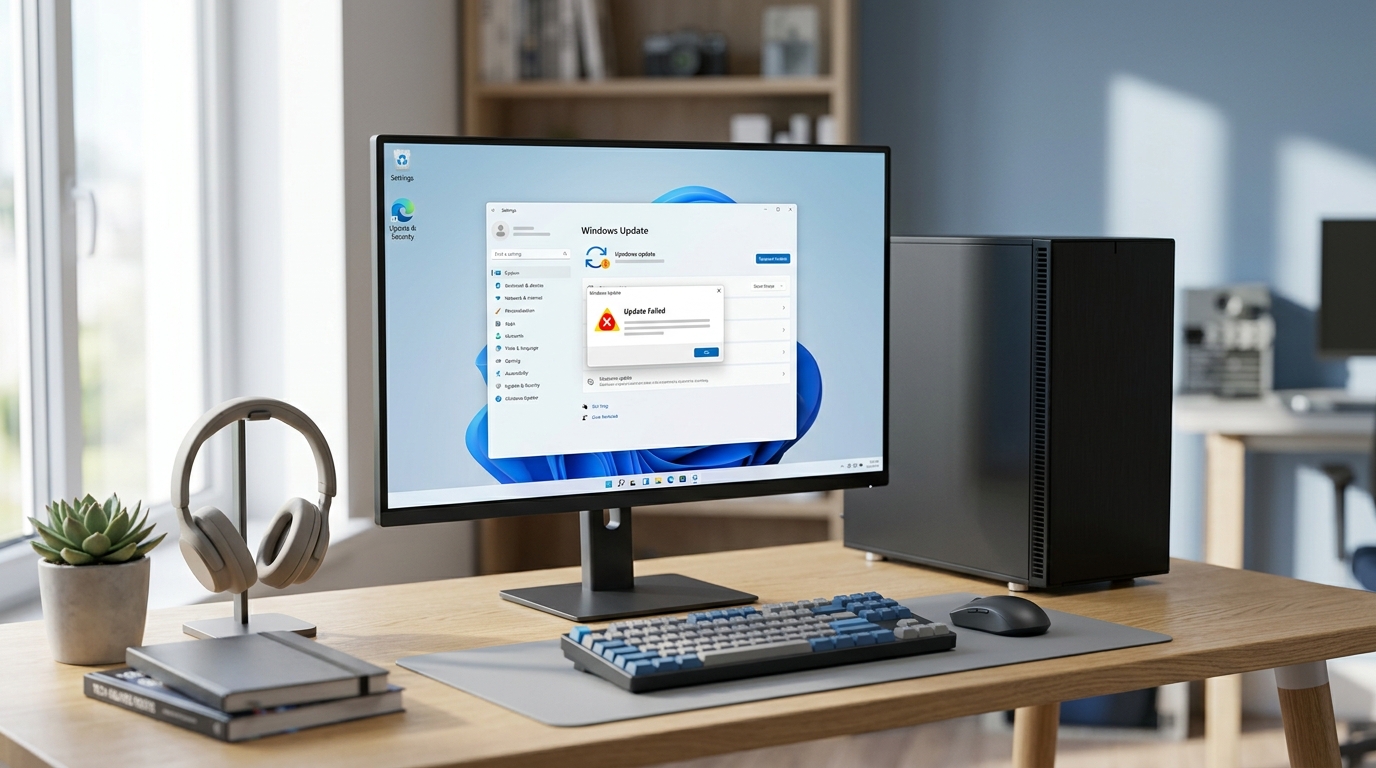
Windows 11 updates are designed to improve security, performance, stability, and compatibility. However, Windows Update can sometimes fail with an error message, get stuck at a certain percentage, or repeatedly try to install the same update.
If you are searching for how to fix Windows 11 update error, you are not alone. Common problems include Windows Update getting stuck, updates failing to install, download errors, restart loops, and error codes such as 0x800f081f, 0x80070002, 0x80073712, and 0x8024a105.
The good news is that many Windows 11 update problems can be fixed without reinstalling Windows.
This guide explains several practical methods to troubleshoot and fix Windows 11 Update errors, starting with simple solutions and progressing to more advanced repairs. Windows 11 Update Error can prevent your system from installing the latest features.
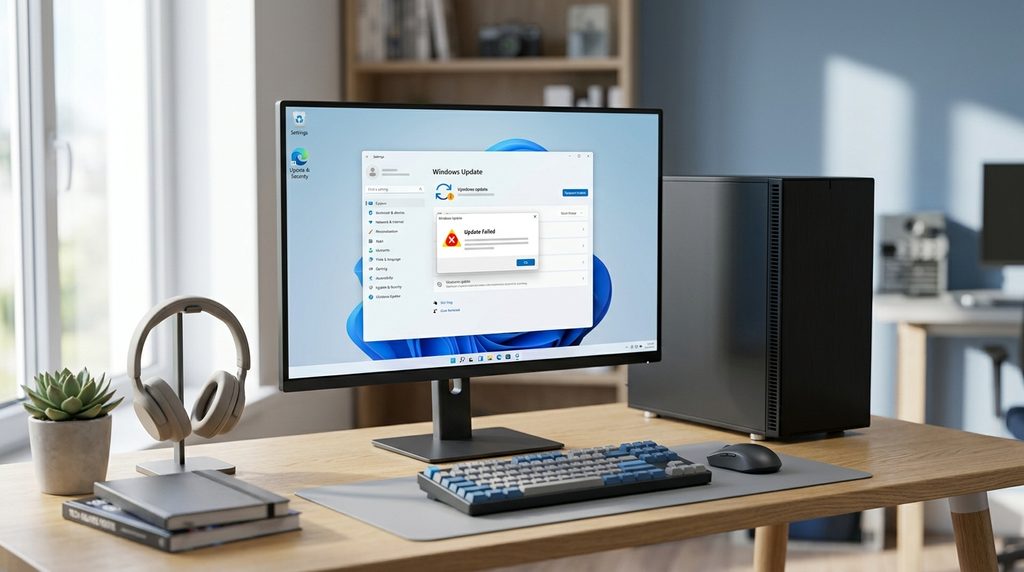
Quick Fixes for Windows 11 Update Errors
Before trying advanced troubleshooting, work through these basic solutions:
- Restart your Windows 11 PC.
- Check your internet connection.
- Make sure you have enough free storage.
- Disconnect unnecessary USB devices.
- Temporarily close applications running in the background.
- Run the Windows Update Troubleshooter.
- Try Windows Update again.
If the update still fails, continue with the methods below. Fixing a Windows 11 Update Error helps keep your computer running smoothly.
What Causes Windows 11 Update Errors?
Windows 11 update failures can have several causes. Understanding the possible cause can help you choose the right solution.
Common causes include:
- Corrupted Windows Update cache
- Damaged system files
- Insufficient disk space
- Unstable internet connection
- Windows Update service problems
- Corrupted update components
- Driver compatibility issues
- Third-party antivirus or security software
- Problems with the Windows component store
- Pending restart after a previous update
- Incorrect system date and time
In some cases, Windows Update may download an update successfully but fail during installation because one or more system components are damaged. A Windows 11 Update Error may appear due to damaged system files.
Method 1: Restart Your Windows 11 PC
The simplest solution is often the most effective.
A pending Windows Update may require a restart before another update can be installed correctly.
How to restart Windows 11
- Click the Start button.
- Select Power.
- Click Restart.
- Wait for Windows to boot completely.
- Open Settings.
- Go to Windows Update.
- Select Check for updates.
Try installing the update again.
Why this works
Restarting Windows can clear temporary processes, complete pending installation tasks, and restart services required by Windows Update. Many users experience Windows 11 Update Error during automatic updates.
Method 2: Check Your Internet Connection
Windows Update requires a stable internet connection to download update files.
If your connection is unstable, the update may stop downloading or display an error.
Try the following:
- Restart your router.
- Connect to another Wi-Fi network.
- Use an Ethernet connection if available.
- Disconnect from a VPN temporarily.
- Check whether other websites load normally.
After restoring your connection, go to:
Settings → Windows Update → Check for updates
If the update begins downloading normally, the problem may have been related to network connectivity.
Method 3: Make Sure You Have Enough Free Storage
Windows updates may require several gigabytes of temporary storage.
If your system drive is nearly full, Windows Update may fail during downloading or installation.
Check available storage
- Open Settings.
- Select System.
- Click Storage.
- Check the available space on your system drive.
Remove unnecessary files if your storage is low.
You can use Temporary files, Storage Sense, or manually remove files you no longer need. Windows 11 Update Error often happens when storage space is limited.
Tip
Avoid deleting Windows system files manually unless you know exactly what they are. Removing the wrong files can create additional Windows problems. Resolving Windows 11 Update Error requires checking your device settings.
Method 4: Run the Windows Update Troubleshooter
Windows 11 includes troubleshooting tools that can automatically detect certain Windows Update problems.
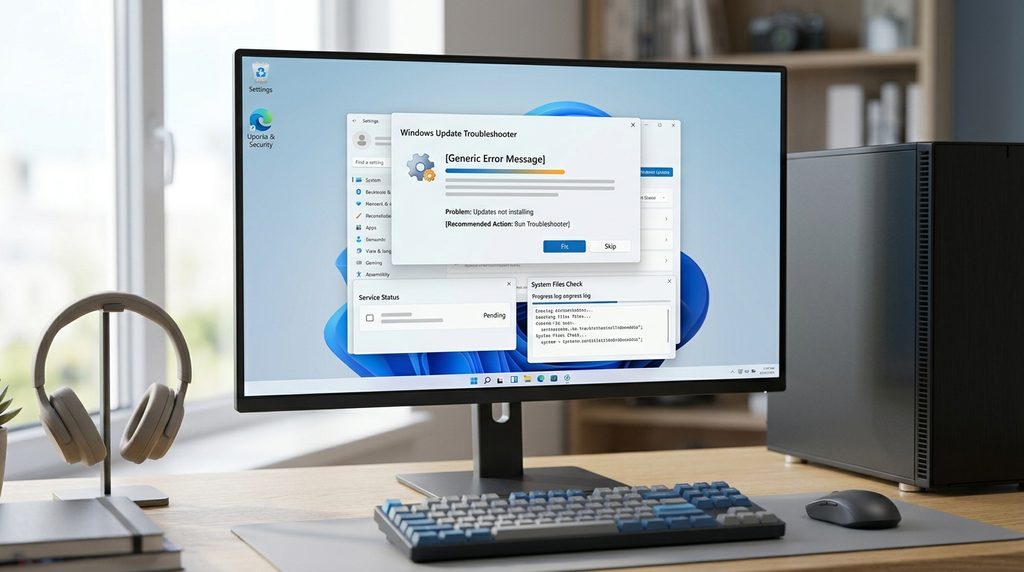
Steps to run Windows Update Troubleshooter
- Open Settings.
- Go to System.
- Select Troubleshoot.
- Click Other troubleshooters.
- Find Windows Update.
- Click Run.
- Follow the instructions on screen.
Once troubleshooting is complete, restart your computer and check Windows Update again.
The troubleshooter may identify problems with Windows Update services, configuration, or related components. Windows 11 Update Error issues can interrupt important security upgrades. Troubleshooting Windows 11 Update Error can restore normal update functions.
Method 5: Restart Windows Update Services
A simple restart may solve some Windows 11 Update Error problems. Windows Update depends on several background services.
If one of these services is stopped or malfunctioning, updates may fail.
Restart Windows Update services
Press Windows + R, type:
services.msc
and press Enter.
Look for services such as:
- Windows Update
- Background Intelligent Transfer Service
- Cryptographic Services
Right-click the relevant service and select Restart when available.
If a service is stopped, right-click it and select Start.
Then restart your PC and try Windows Update again.
Method 6: Clear the Windows Update Cache
A corrupted Windows Update cache can prevent new update packages from downloading or installing correctly.
This method is particularly useful when Windows Update repeatedly fails after downloading an update.
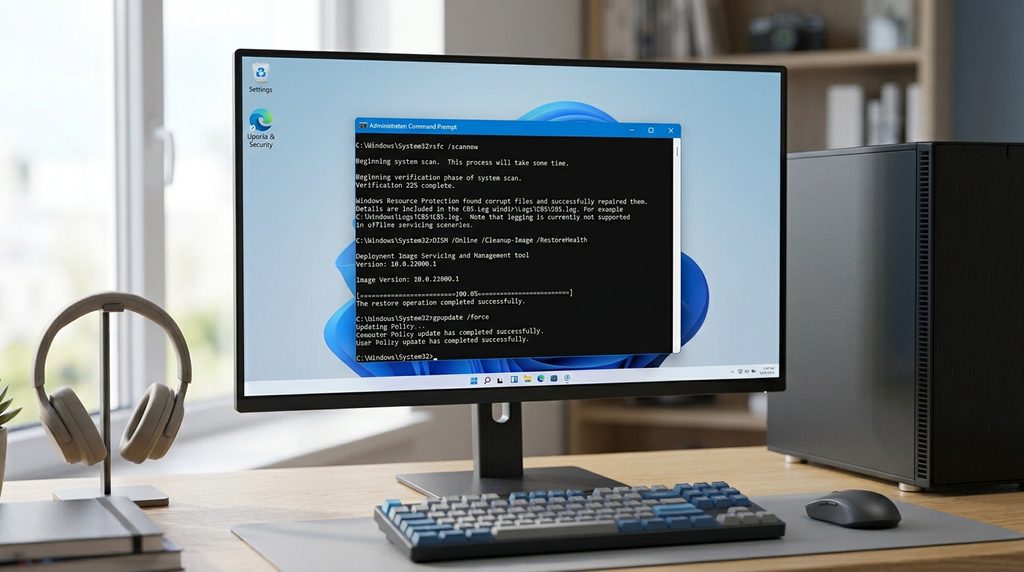
Step 1: Open Command Prompt as Administrator
Search for Command Prompt from the Start menu.
Right-click it and select:
Run as administrator
Step 2: Stop Windows Update services
Enter the following commands one at a time:
net stop wuauserv
net stop bits
net stop cryptsvc
Press Enter after each command.
Step 3: Rename the update cache folders
Run:
ren C:\Windows\SoftwareDistribution SoftwareDistribution.old
ren C:\Windows\System32\catroot2 catroot2.old
Step 4: Restart the services
Run:
net start wuauserv
net start bits
net start cryptsvc
Restart your computer.
Then open Settings → Windows Update and select Check for updates.
Windows will recreate the required update folders automatically.
Method 7: Run System File Checker
Damaged Windows system files can cause update failures.
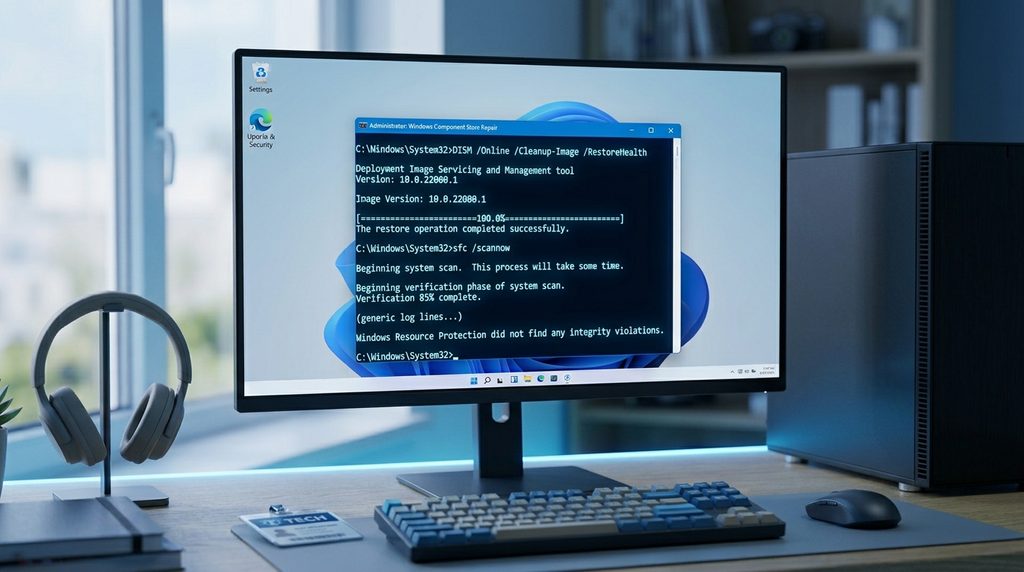
Windows includes a built-in tool called System File Checker (SFC) that can scan protected system files and repair certain problems.
How to run SFC
Open Command Prompt as Administrator and run:
sfc /scannowWait until the scan reaches 100%.
Do not close the Command Prompt window while the scan is running.
When it finishes, restart your PC and try Windows Update again.
Method 8: Use DISM to Repair Windows Components
If SFC cannot repair the problem, the Windows component store may need to be repaired.
Deployment Image Servicing and Management (DISM) is a Windows tool designed to service and repair Windows images.
Open Command Prompt as Administrator and run:
DISM /Online /Cleanup-Image /RestoreHealthThe process may take some time.
After DISM finishes, restart Windows.
For additional system-file repair, you can then run:
sfc /scannowRestart the computer again and check Windows Update. When Windows update failures are caused by damaged system components, users can try tools designed to repair corrupted Windows system files such as DISM and System File Checker.
Why DISM can help
Windows Update relies on various system components. If the component store is damaged, update installation may fail even when the Windows Update service itself is working. Some Windows 11 update failures may also be related to system file corruption or application conflicts, similar to issues discussed in our guide about Error 0xc0000005 in Windows 11.
Method 9: Temporarily Disable Third-Party Security Software
Some third-party antivirus, firewall, VPN, or system-management applications can interfere with Windows Update.
If you recently installed security or system software and Windows Update started failing afterward, check whether the software is affecting the update process.
Before disabling security software, make sure you understand the risks and avoid downloading files from untrusted sources.
If the update works after temporarily disabling a third-party application, re-enable your protection afterward and check the application’s documentation for a compatible configuration.
Method 10: Check for Driver and Compatibility Problems
A Windows update may fail because of an incompatible device driver or connected hardware.
Try disconnecting unnecessary external devices such as:
- USB storage devices
- Printers
- External adapters
- Docks
- Other nonessential peripherals
Then restart Windows and attempt the update again.
You should also check Device Manager for devices showing warning icons.
To open Device Manager:
- Right-click the Start button.
- Select Device Manager.
- Look for devices with warning symbols.
- Check the manufacturer’s documentation for an updated driver.
Avoid installing drivers from unknown websites. Windows 11 Update Error might be caused by incompatible drivers.
How to Fix a Specific Windows 11 Update Error Code
Different Windows Update error codes can indicate different underlying problems.
Here are some examples:
| Error Code | Possible Area to Investigate |
|---|---|
| 0x800f081f | Windows component or source files |
| 0x80070002 | Missing or inaccessible update files |
| 0x80073712 | Damaged or missing system components |
| 0x8024a105 | Windows Update service or update components |
| 0x8007000d | Corrupted or invalid update data |
These codes should be treated as clues rather than definitive diagnoses. The exact cause can depend on the Windows version, update package, installed software, and system configuration. Learning how to repair Windows 11 Update Error saves time and effort.
What to Do If Windows 11 Update Is Stuck
Sometimes Windows Update appears to stop progressing at a certain percentage.
Before forcing a shutdown, give the installation time if the computer is still showing signs of activity.
If Windows appears completely unresponsive for an extended period:
- Wait and monitor the system.
- Check whether the storage activity indicator is still active.
- If Windows eventually returns to the desktop, restart the computer normally.
- Run Windows Update again.
- If the problem repeats, clear the Windows Update cache and run SFC/DISM.
Avoid repeatedly interrupting an update installation because unexpected shutdowns can create additional system problems. Windows 11 Update Error messages can confuse users during installation.
What If Windows 11 Keeps Installing the Same Update?
If Windows repeatedly downloads or attempts to install the same update, the update cache or component store may be damaged.
Try these steps in order:
- Restart Windows.
- Run Windows Update Troubleshooter.
- Clear the Windows Update cache.
- Run
DISM /Online /Cleanup-Image /RestoreHealth. - Run
sfc /scannow. - Restart the computer.
- Check Windows Update again.
If the issue continues, note the exact error code displayed by Windows Update. That information can help identify the next troubleshooting step. Updating drivers may help eliminate Windows 11 Update Error issues.
How to Prevent Future Windows 11 Update Errors
You cannot prevent every Windows Update problem, but several habits can reduce common issues.
Keep enough free storage
Maintain sufficient free space on the Windows system drive.
Keep device drivers updated
Use official hardware manufacturer or Windows-provided sources when updating drivers.
Avoid unnecessary system modifications
Aggressive registry cleaners, unofficial system optimizers, and modified Windows components can create compatibility problems. Windows 11 Update Error can occur after major operating system changes.
Keep security software updated
Make sure your antivirus and other security applications are compatible with your current Windows version.
Back up important files
Before major Windows upgrades, maintain a current backup of important documents and personal data.
Frequently Asked Questions
Why is my Windows 11 update failing?
Windows 11 updates can fail because of corrupted update files, damaged system components, insufficient storage, service problems, incompatible drivers, or software conflicts. Users should diagnose Windows 11 Update Error before reinstalling Windows.
How do I fix Windows 11 Update Error 0x800f081f?
Start by restarting Windows and running the Windows Update Troubleshooter. If the problem continues, use DISM to repair the Windows component store and then run System File Checker. Before trying advanced solutions, users can start with the built-in Windows Update troubleshooter provided by Microsoft to automatically detect and resolve common update problems.
How do I reset Windows Update?
You can reset Windows Update components by stopping the relevant services, renaming the SoftwareDistribution and catroot2 folders, restarting the services, and then checking for updates again.
Will clearing the Windows Update cache delete my personal files?
Renaming the Windows Update cache folders does not normally delete your personal documents, photos, or other personal files. Windows recreates the required folders when the update components start again.
Can SFC fix Windows Update errors?
SFC can repair certain corrupted Windows system files, so it may resolve update problems caused by system-file corruption. However, it cannot fix every Windows Update error. If basic methods do not resolve the issue, Microsoft provides additional steps to fix Windows Update problems, including repairing system files and resetting update components.
Should I reinstall Windows 11 if Windows Update does not work?
Reinstalling Windows should generally not be the first troubleshooting step. Try Windows Update Troubleshooter, resetting update components, DISM, and SFC first. If those methods fail, consider Microsoft’s supported recovery or repair options for your specific situation.
Final Thoughts
A failed Windows 11 update does not necessarily mean that your computer has a serious problem. In many cases, the issue can be resolved by restarting the system, checking storage and connectivity, repairing Windows system files, or resetting Windows Update components. If the Windows Update process continues to fail with a specific error code, users can also check our guide on Windows Update Error 0x80070057 for additional troubleshooting steps and targeted solutions.
Start with the simplest solutions and move toward advanced troubleshooting only when necessary. If Windows displays an error code, write it down because it can provide valuable information about what is preventing the update from completing.
If you continue experiencing the same Windows 11 Update error after trying these methods, investigate the specific error code and the update’s installation history for more detailed information.
