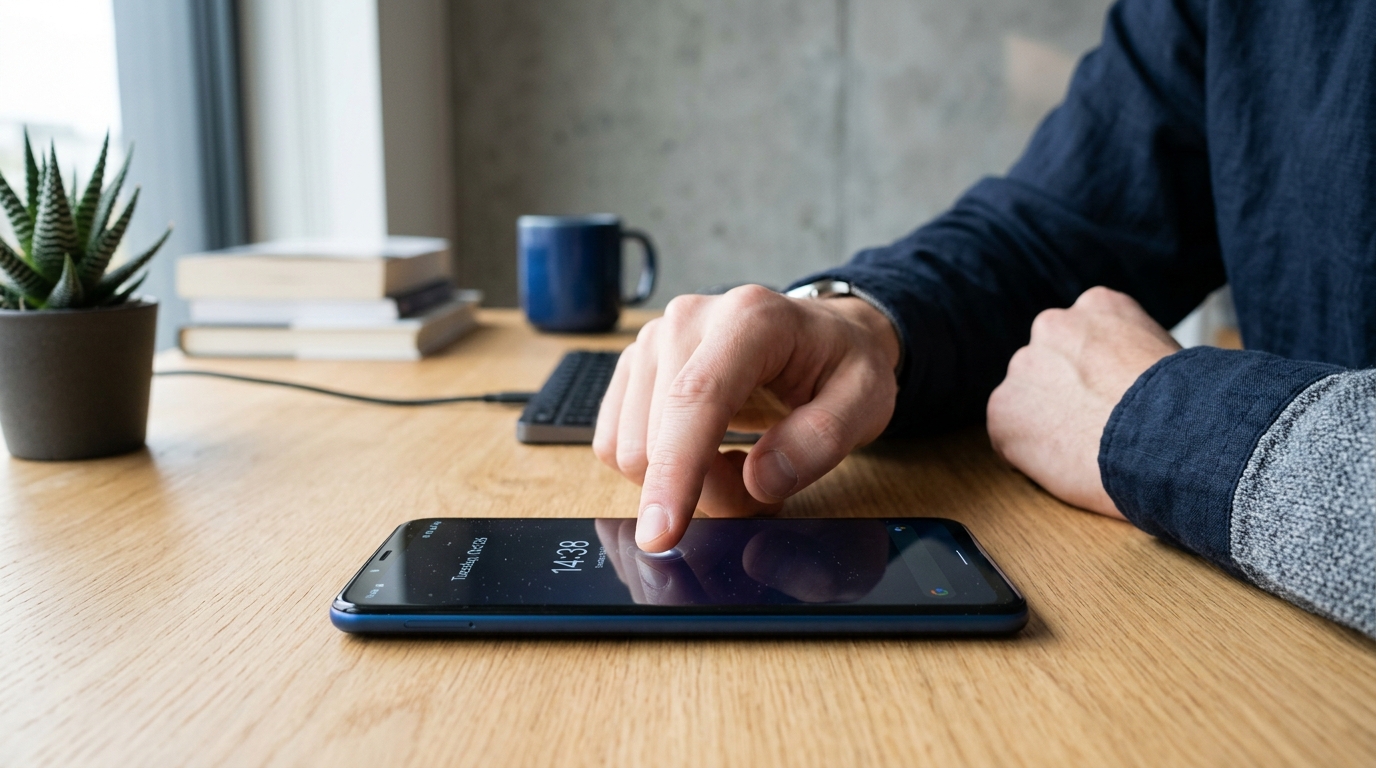
When your Android touchscreen suddenly stops responding, using your phone can become frustrating very quickly. You may notice that the screen does not register taps, only certain areas respond, or the display works while touch input completely fails.
Fortunately, a touchscreen that is not working does not always mean your phone needs an expensive repair. Software glitches, a dirty screen, screen protectors, moisture, faulty accessories, and temporary system problems can all affect touch sensitivity.
In this guide, we’ll explain how to fix Android touchscreen not working using practical troubleshooting methods, starting with the easiest solutions and moving toward more advanced steps.
Important: If your phone has been severely dropped, crushed, bent, or exposed to significant water, avoid repeatedly pressing the screen. Physical damage may require professional repair.
Why Is My Android Touchscreen Not Working?
Before trying a fix, it helps to understand what may be causing the problem.
Common causes include:
- Temporary Android system glitches
- A frozen or overloaded system
- Dirt, oil, or moisture on the screen
- A damaged screen protector
- An incompatible case
- Touch sensitivity settings
- Recently installed apps
- Software or firmware problems
- Physical damage to the display
- Water or liquid damage
- A failing touchscreen digitizer
- Problems caused by charging accessories
If the screen worked normally before the problem appeared, start with software and accessory-related troubleshooting.
1. Clean the Android Screen
The first thing you should do is check whether the touchscreen is dirty or wet.
Oil, dust, water droplets, and other debris can interfere with capacitive touchscreens.
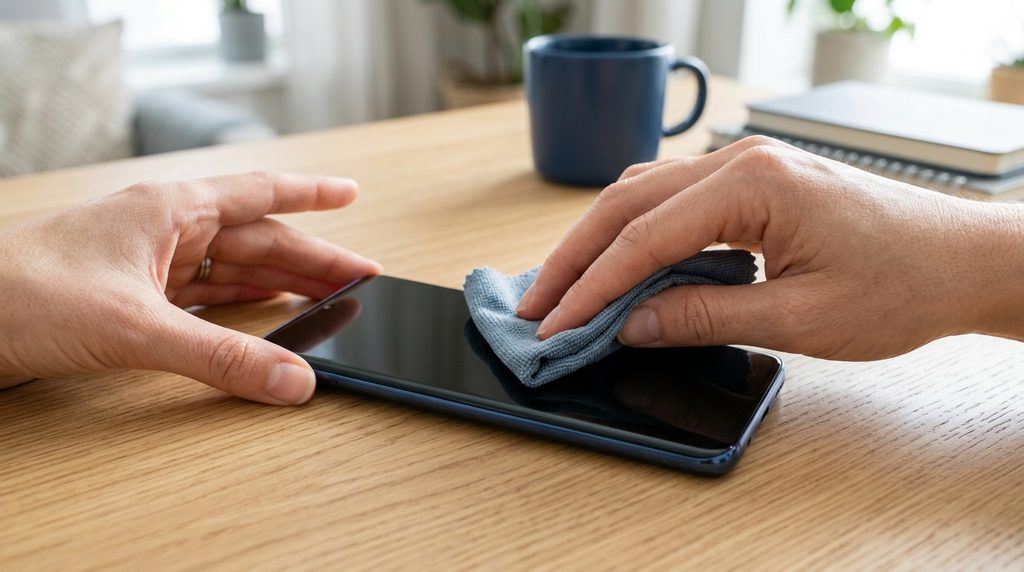
How to clean the screen
- Disconnect your phone from the charger.
- Turn off the display if possible.
- Use a clean, soft microfiber cloth.
- Gently wipe the entire screen.
- Make sure your fingers are clean and dry.
- Try using the touchscreen again.
Avoid spraying cleaning liquid directly onto the phone.
If the phone was recently exposed to water, allow it to dry completely before testing the touchscreen.
2. Remove the Screen Protector and Phone Case
A damaged or poorly installed screen protector can sometimes reduce touch sensitivity.
This is especially possible when:
- The protector has cracks.
- There are large air bubbles.
- The edges are lifting.
- Dirt is trapped underneath.
- The protector is unusually thick.
- The case presses against the display edges.
Remove the case first and test the touchscreen.
If the problem continues, consider temporarily removing the screen protector and testing the phone again.
If touch functionality returns, the accessory may be responsible.
3. Restart Your Android Phone
A simple restart can solve many temporary Android problems.
If your screen still responds enough to use the power menu:
- Press and hold the Power button.
- Select Restart.
- Wait for the phone to boot completely.
- Test the touchscreen.
A restart can clear temporary system processes and software glitches that may interfere with touch input.
What if the touchscreen does not respond?
If you cannot interact with the screen, try a forced restart.
The exact button combination varies by manufacturer and model. On many Android phones, holding the Power button and a Volume button for several seconds can force a restart.
Check your phone manufacturer’s official instructions for the exact combination for your model.
4. Disconnect the Charger and Other Accessories
If your touchscreen becomes unresponsive only while the phone is charging, the charger, cable, or power source could be contributing to the problem.
Try this:
- Disconnect the charging cable.
- Wait a few seconds.
- Clean and dry your hands.
- Test the touchscreen.
- If touch works again, try a different compatible charger and cable.
Low-quality or damaged charging accessories can sometimes cause unusual touchscreen behavior.
If the problem consistently occurs while charging, avoid using the problematic charger until you identify the cause.
5. Check Whether Only Part of the Screen Is Not Working
Try tapping different areas of the display.
For example, test:
- The top-left corner
- Top-right corner
- Center of the screen
- Bottom-left corner
- Bottom-right corner
If only a specific section does not respond, the issue may be related to the touchscreen hardware rather than a temporary software problem.
A partially unresponsive screen is particularly important to investigate if the phone was recently dropped or physically damaged.
6. Boot Your Android Phone Into Safe Mode
If the touchscreen started malfunctioning after installing an app, a third-party application could be contributing to the problem.
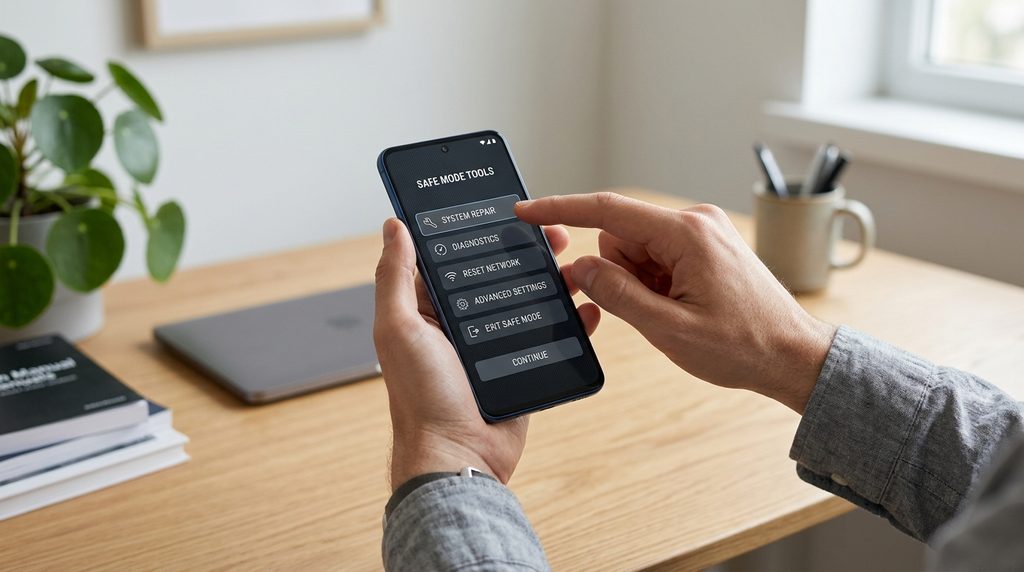
Android’s Safe Mode can help determine whether downloaded apps are involved.
In Safe Mode, Android starts with essential system software while third-party applications are disabled.
How to test Safe Mode
The exact procedure differs between Android manufacturers and versions. Generally:
- Open the power menu.
- Touch and hold the Power off option.
- Look for the Safe Mode prompt.
- Confirm and restart the phone.
- Test the touchscreen.
If the touchscreen works normally in Safe Mode, a recently installed or updated application may be causing the problem.
Start by uninstalling recently added apps, particularly applications that interact with the display, accessibility features, overlays, screen filters, or device controls.
7. Update Android and Your Apps
Software bugs can sometimes cause unusual touchscreen behavior.
If you can use the touchscreen:
- Open Settings.
- Go to System or Software Update, depending on your device.
- Check for available Android updates.
- Install any appropriate update.
- Restart the phone.
You should also update your apps through the Google Play Store.
However, if the touchscreen stopped working immediately after a software update, investigate whether other users with the same device are reporting the same issue before performing major troubleshooting steps.
8. Turn On Increased Touch Sensitivity
Some Android phones include a setting designed to increase touchscreen sensitivity, particularly when a screen protector is installed.
Depending on the manufacturer, this feature may be located under settings related to:
- Display
- Touch sensitivity
- Screen sensitivity
- Advanced features
- Accessibility
Search the Settings app for “touch sensitivity” if your phone supports Settings search.
This option is not available on every Android device, so the name and location can vary.
9. Remove Recently Installed Apps
If the touchscreen problem appeared shortly after installing a particular application, consider removing that app.
Pay special attention to apps that:
- Display overlays
- Modify screen colors
- Add floating buttons
- Control accessibility features
- Change navigation behavior
- Manage device performance
- Modify the lock screen
- Install unusual launchers
To uninstall an application:
- Open Settings.
- Select Apps.
- Find the recently installed application.
- Select Uninstall.
- Restart the phone.
- Test the touchscreen.
If you cannot use the touchscreen normally, Safe Mode may help you determine whether a third-party application is responsible.
10. Perform a Factory Reset as a Last Resort
A factory reset should not be your first solution.
It removes personal data, installed applications, accounts, and many customized settings from the device.
Before performing a factory reset, make sure you have a backup of important information such as:
- Photos
- Videos
- Contacts
- Documents
- Messages
- Authentication information
- Important app data
If the touchscreen is still partially functional, back up your important files before proceeding.
The factory-reset process varies by Android manufacturer. Look for Factory Reset, Reset Options, or similar settings in the phone’s system settings.
Important
If the touchscreen is physically damaged, a factory reset is unlikely to repair the hardware.
What to Do If Your Android Touchscreen Is Completely Unresponsive
If absolutely nothing happens when you touch the screen, start with the following sequence:
Step 1: Disconnect the charger.
Step 2: Remove the case.
Step 3: Remove or inspect the screen protector.
Step 4: Clean and dry the display.
Step 5: Perform a forced restart.
Step 6: Test the screen after restarting.
Step 7: If possible, connect a compatible external input device to back up important data.
Step 8: Seek professional repair if the touchscreen remains completely unresponsive.
If the phone was dropped or exposed to water immediately before the problem began, hardware damage becomes a more likely explanation.
What If the Android Screen Works but Touch Is Delayed?
A delayed touchscreen response can have different causes from a completely dead touchscreen.
Try these steps:
- Restart the phone.
- Close unnecessary applications.
- Free up storage space.
- Remove a problematic screen protector.
- Disconnect accessories.
- Update Android.
- Update applications.
- Check for overheating.
- Test the phone without the case.
- Boot into Safe Mode.
If the phone is extremely hot, allow it to cool naturally before continuing to use it.
Do not place an overheated phone in a freezer or expose it to extreme temperatures.
What If Only One Area of the Touchscreen Doesn’t Work?
When only a particular section of the screen stops responding, software troubleshooting may not solve the problem.
For example, if the top section works but the bottom portion never detects touches, the touchscreen digitizer may have a hardware problem.
This is more concerning when:
- The phone was dropped.
- The display is cracked.
- The phone is bent.
- The screen has visible damage.
- The problem is getting progressively worse.
- Touch stops working in exactly the same area repeatedly.
In these situations, consider having the device inspected by an authorized repair center or qualified technician.
Can Water Cause an Android Touchscreen to Stop Working?
Yes. Moisture can interfere with touchscreen operation and may also damage internal components.
If your phone has been exposed to liquid:
- Disconnect the charger immediately.
- Turn off the phone if possible.
- Remove accessories.
- Dry the exterior with a soft cloth.
- Do not repeatedly press the touchscreen.
- Do not use external heat to dry the phone.
- Seek professional assistance if the device does not operate normally after drying.
If the phone has significant liquid exposure, continued operation can potentially make the damage worse.
When Should You Get Professional Repair?
You should consider professional repair when basic troubleshooting does not restore touchscreen functionality.
Professional inspection is especially appropriate when:
- The display is cracked.
- The phone was dropped.
- The device was exposed to water.
- Touch works only in certain areas.
- The screen shows abnormal lines or flickering.
- The display separates from the frame.
- The touchscreen repeatedly stops working.
- The phone has other hardware problems.
A technician can determine whether the problem involves the display assembly, touchscreen digitizer, internal connectors, battery, or another component.
Frequently Asked Questions
Why is my Android touchscreen not responding?
An Android touchscreen may stop responding because of a temporary software problem, dirty or wet screen, damaged screen protector, faulty accessory, problematic app, software issue, or physical hardware damage.
How do I fix an Android touchscreen that won’t respond?
Start by cleaning and drying the screen, removing the case and screen protector, disconnecting the charger, and restarting the phone. If the problem continues, test Safe Mode and investigate recently installed applications.
Can a screen protector cause touchscreen problems?
Yes. A damaged, poorly installed, or unusually thick screen protector can sometimes reduce touch sensitivity.
Why does my touchscreen only work when I’m not charging?
A charging accessory or power source may be contributing to the problem. Disconnect the charger and test the phone. If the touchscreen works normally afterward, try a different compatible charger and cable.
Can restarting fix an unresponsive touchscreen?
A restart can fix touchscreen problems caused by temporary software glitches or frozen processes. It will not repair physical damage to the touchscreen.
Should I factory reset my phone if the touchscreen doesn’t work?
A factory reset should generally be a last resort because it removes personal data and settings. If the screen has physical damage, resetting the phone is unlikely to fix the underlying hardware problem.
How do I know if my touchscreen is damaged?
A touchscreen may have hardware damage if specific areas consistently fail to respond, especially after a drop, impact, bending, or liquid exposure.
Final Thoughts
When your Android touchscreen stops working, don’t immediately assume that the display needs to be replaced. Start with simple checks such as cleaning the screen, removing accessories, disconnecting the charger, and restarting the phone.
If the problem appeared after installing an app, Safe Mode can help identify a software-related cause. Updating Android and removing problematic applications may also restore normal operation.
However, persistent problems—especially after drops, cracks, bending, or liquid exposure—can indicate hardware damage. In those situations, professional inspection is usually more appropriate than repeatedly resetting the device.
By working through these troubleshooting steps from simplest to most advanced, you can identify many common causes of an Android touchscreen not working without immediately resorting to expensive repairs.
Quick Troubleshooting Checklist
Android touchscreen not working? Try this order:
- Clean and dry the screen.
- Remove the phone case.
- Inspect or remove the screen protector.
- Disconnect the charger.
- Restart the phone.
- Force restart if necessary.
- Test different areas of the screen.
- Try Safe Mode.
- Remove recently installed apps.
- Update Android and apps.
- Back up your data.
- Consider professional repair if the problem continues.